
The Fear of ‘Chat History Unavailable’: When the Cloud Fails You
You open ChatGPT. The screen shows: “Chat history unavailable. We’re working to restore access.”
Your stomach drops. Six months of conversations. Research notes. Code solutions. Strategic insights. Business ideas. All inaccessible.
Hours pass. Then days. You realize: You don’t own your chat history. OpenAI does. And when their systems fail—or when they change policies, sunset features, or experience data loss—your intellectual property vanishes.
For power users, this isn’t paranoia—it’s risk management. Your browser extension should give you data sovereignty, not leave you dependent on a third-party platform.
The Cloud Isn’t Yours: Understanding Data Ownership
When you use ChatGPT, you’re trusting OpenAI with:
-
Every question you’ve asked
-
Every idea you’ve explored
-
Every piece of code you’ve generated
-
Every strategic analysis you’ve conducted What you don’t have:
-
Guaranteed uptime (outages happen)
-
Permanent retention (policies change)
-
Export functionality (limited to JSON dumps)
-
Search capability (ChatGPT’s search is primitive)
-
Version control (edits overwrite, no history) What happens when:
-
OpenAI changes data retention policies?
-
Your account gets locked or suspended?
-
The service shuts down or pivots?
-
You hit storage limits and old chats get purged? You lose everything. Unless you own a copy.
Looking for code snippet workflows? Check our guide on saving code to Notion.
The ‘One-Click’ Archive: Handling Long Conversations
Some ChatGPT conversations span 20,000+ words. Multi-hour brainstorming sessions. Iterative code development. Deep research dives.
Traditional export methods fail at scale:
- Screenshots: Not searchable, not editable, image files bloat storage
- Copy-paste: Formatting breaks, tables collapse, code loses syntax highlighting
- JSON export: Requires technical parsing, not human-readable
How Complete Archiving Works
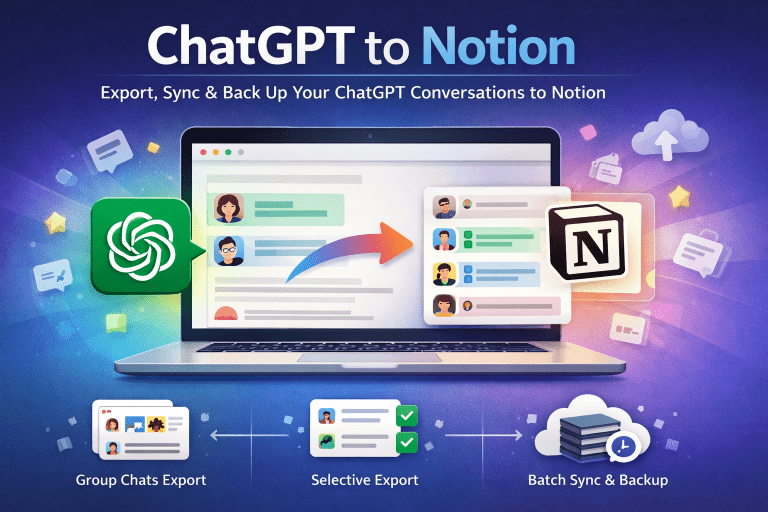
With proper tooling, you backup ChatGPT to Notion while preserving:
- Full conversation length: 20k+ words, no truncation
- Complete formatting: Headers, lists, tables, code blocks
- Syntax highlighting: Code remains readable with language detection
- Editability: Text in Notion, not locked in images
- Searchability: Every word indexed by Notion’s search The Process:
- Open any ChatGPT conversation (any length)
- Click the extension icon
- Entire conversation saves to Notion in seconds
- Formatting, structure, code—all preserved No manual work. No data loss. No format degradation.
Long Conversation Example
Scenario: 3-hour coding session with ChatGPT
-
47 messages back and forth
-
12 code blocks (Python, SQL, Bash)
-
3 comparison tables
-
8,500 words total Manual backup attempt:
-
Copy-paste: 30 minutes, formatting broken
-
Screenshots: 15 images, not searchable
-
JSON export: Requires custom parser Automated backup:
-
One click: 10 seconds
-
Perfect formatting: All code blocks, tables, headers intact
-
Immediately searchable: Find any code snippet or explanation instantly
Searchability Upgrade: Finding Your Past Insights
ChatGPT’s search is limited. You can search conversation titles, but not content. If you forgot which conversation contained that brilliant insight, you’re scrolling through dozens of threads.
ChatGPT Search Limitations
What you can search:
-
Conversation titles (if you named them)
-
Recent conversations (limited history) What you can’t search:
-
Message content
-
Code within conversations
-
Specific phrases or keywords
-
Date ranges
-
Topics or themes Result: You know you discussed something 3 months ago, but finding it requires manual review of 50+ conversations.
Notion Search Advantages
Once conversations are in Notion:
Full-text search:
-
Search any word in any conversation
-
Find code snippets by function name
-
Locate specific phrases or quotes
-
Search across all archived conversations simultaneously Advanced filtering:
-
Filter by date range
-
Filter by topic tags
-
Filter by conversation length
-
Filter by participants (if group chats) Instant results:
-
Notion’s Quick Find (Cmd/Ctrl + P)
-
Results appear as you type
-
Jump directly to the relevant section
-
See context around search matches Example Search Scenarios:
Scenario 1: Finding a code solution
-
Search: “reverse slice Go”
-
Result: Instant jump to the conversation where you solved this problem
-
Context: See the full discussion, not just the code Scenario 2: Recalling a business idea
-
Search: “subscription pricing model”
-
Result: All conversations mentioning pricing strategies
-
Filter: Narrow to conversations from Q4 2025 Scenario 3: Locating a research insight
-
Search: “CRISPR gene editing limitations”
-
Result: The exact conversation with detailed analysis
-
Benefit: No need to re-research or re-prompt ChatGPT
Organizing the Archives: Your Master Database
A pile of archived conversations isn’t a system. You need structure, metadata, and taxonomy.
Database Name: 🗄️ Master Archive
Core Properties:
Views:
- Timeline View (Calendar)
- See all conversations by date
- Identify productive periods
- Track conversation frequency
- Topic View (Board)
- Group by Topic
- See all work-related conversations in one column
- All research conversations in another
- Recent Archives (List)
- Sort by Date descending
- Quick access to latest conversations
- Default view for daily use
- Long Conversations (List)
- Filter: Word Count > 5000
- These are your deep-dive sessions
- High-value content to review
The Backup Strategy: Frequency and Coverage
Data sovereignty requires discipline. Backup regularly, backup comprehensively.
Recommended Backup Frequency
Daily Power Users:
-
Backup at end of each work session
-
Ensures no conversation is lost
-
Takes 30 seconds per conversation Weekly Regular Users:
-
Batch backup all conversations once per week
-
Use bulk export feature
-
Review and tag during backup Monthly Casual Users:
-
Archive important conversations immediately
-
Monthly sweep for anything missed
-
Focus on high-value content
What to Backup
Priority 1: High-Value Conversations
-
Strategic planning sessions
-
Code development work
-
Research deep-dives
-
Problem-solving breakthroughs Priority 2: Reference Material
-
How-to guides you generated
-
Explanations of complex topics
-
Comparison analyses
-
Decision frameworks Priority 3: Everything Else
-
Even casual conversations have value
-
You never know what you’ll need later
-
Storage is cheap, lost ideas are expensive
Digital Asset Management: Treating Conversations as IP
Your ChatGPT conversations are intellectual property. Treat them accordingly.
The Asset Mindset
Each conversation is:
-
Research output: Hours of exploration compressed into insights
-
Code repository: Solutions you can reuse
-
Knowledge base: Explanations you’ll reference
-
Idea inventory: Concepts to develop later Without backup:
-
Assets are at risk
-
No version control
-
No ownership guarantee
-
Dependent on third-party platform With backup:
-
Assets are secured
-
Full ownership
-
Searchable archive
-
Editable for future use
Off-boarding from ChatGPT
You don’t need to leave ChatGPT. But you should be able to.
Scenario: OpenAI changes pricing
- Your costs triple overnight
- You decide to switch to Claude, Gemini, or local models
- Question: Can you take your conversation history with you? Without backup: No. Your history stays with OpenAI.
With backup: Yes. Your entire archive is in Notion, platform-independent.
Scenario: Account suspension
- False positive on terms of service
- Account locked pending review
- Question: Can you access your work? Without backup: No. You’re locked out.
With backup: Yes. Everything is in your Notion workspace.
Batch Archiving: Saving Hundreds of Conversations
If you’ve been using ChatGPT for months without backing up, you have hundreds of conversations to archive.
The Bulk Export Workflow
Step 1: Assess Volume
-
Check ChatGPT conversation count
-
Estimate: 100-500 conversations typical for power users
-
Plan: Batch export in manageable chunks Step 2: Prioritize
-
Start with recent conversations (last 3 months)
-
Then archive older high-value conversations
-
Finally, sweep everything else Step 3: Batch Save
-
Use extension’s bulk export feature
-
Select date range or conversation count
-
Let it run (can take 10-30 minutes for 100+ conversations) Step 4: Organize
-
Review saved conversations in Notion
-
Add Topic tags
-
Write Key Takeaways for important ones
-
Archive or delete truly useless conversations
Performance Considerations
Large archives:
-
500 conversations = ~2-5 GB in Notion
-
Notion handles this easily
-
Search remains fast even with thousands of pages Rate limits:
-
Notion API has rate limits
-
Extension handles this automatically
-
Batch exports may pause briefly to respect limits Time investment:
-
Initial bulk export: 1-2 hours for 500 conversations
-
Ongoing maintenance: 5 minutes per day
-
ROI: Priceless when you need to find something
Tagging Strategy: Making Archives Useful
An archive without tags is a digital junk drawer. Structure determines utility.
Recommended Tag Schema
By Content Type:
-
#Code - Programming solutions
-
#Research - Deep-dive investigations
-
#Strategy - Business planning
-
#Writing - Content creation
-
#Learning - Educational conversations By Project:
-
#ProjectAlpha - Specific work project
-
#Thesis - Academic research
-
#Startup - Business venture
-
#PersonalDev - Self-improvement By Value:
-
#HighValue - Critical insights to review
-
#Reference - Useful but not urgent
-
#Archive - Saved for completeness By Status:
-
#ToReview - Need to extract insights
-
#Processed - Already extracted value
-
#Obsolete - Outdated but kept for history
Filtering Examples
Preparing for a project:
-
Filter: Topic = Work, Tags = #ProjectAlpha
-
Result: All conversations related to this project Learning review:
-
Filter: Topic = Learning, Date = Last 30 days
-
Result: All educational conversations this month Code reference:
-
Filter: Tags = #Code, Tags = #Python
-
Result: All Python coding conversations
Conclusion: Own Your Data
Your ChatGPT conversations are your intellectual property. Your research. Your code. Your ideas. Your strategic thinking.
Don’t leave them hostage to a third-party platform. Don’t trust that “the cloud” will always be there. Don’t assume you’ll always have access.
Take ownership of your data with systematic archiving. Backup conversations as you create them. Build a searchable, permanent archive. Ensure you can always access your intellectual property—regardless of what happens to ChatGPT.
Ready to secure your conversation history? Install ChatGPT2Notion and archive your first conversation in under 60 seconds.
Not worried about backups but need better code organization? See our guide on building a code snippet library.
Keywords: backup ChatGPT history to Notion, archive ChatGPT conversations, export chat logs to Notion, ChatGPT data export tool