

How to Export Claude Conversations to Notion
Saving Claude conversations one at a time is manageable until you need a real backup.
Claude to Notion is built for that larger job: bulk export the current archive page or complete history, batch-select many specific conversations, or export every relevant conversation from a Claude Project. It also handles one-click and custom single-chat exports when a smaller workflow is appropriate.
Each conversation can grow into a working record containing prompts, revisions, code, research, images, attachments, Artifacts, decisions, and the context behind the final result. A useful bulk workflow must preserve that structure rather than flattening every record into plain text.
This guide covers seven practical paths, including the three batch workflows that distinguish a real archive tool: complete history, selected conversation batches, and Claude Projects.
Watch: Export Claude conversations to Notion
The 3-minute walkthrough below shows the extension popup, Custom Export, bulk and selective sync, Claude Projects, preserved Artifacts and files, and the resulting Notion knowledge base.
Watch the tutorial on YouTube.
What a useful Claude-to-Notion export should preserve
A durable Notion archive should contain more than plain text. Depending on the source conversation, look for:
- User and Claude messages in the correct order
- Headings, lists, links, code blocks, and timestamps
- Artifact content and available version history
- Supported images, SVG content, PDFs, attachments, and generated files
- Project name, model, message count, conversation ID, and created or updated dates
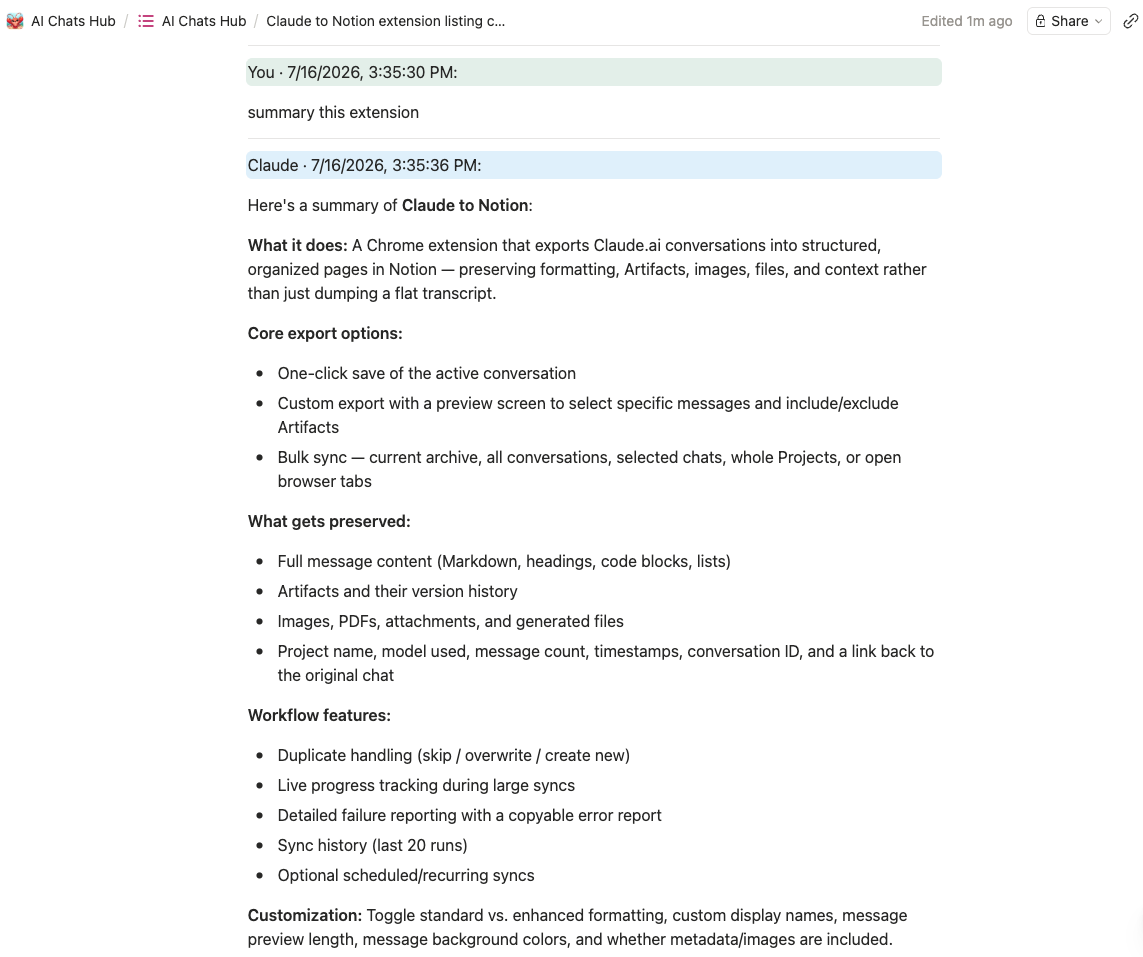
- A clickable link back to the original Claude conversation
The source URL is especially important. It lets a future reader move from the cleaned-up Notion record back to the live Claude thread when more context is needed.
Before you export
- Install and pin Claude to Notion.
- Sign in at claude.ai.
- If Claude was already open when you installed the extension, refresh the tab once.
- Connect Notion through OAuth.
- Share the data source that should receive the conversations.
- Choose a duplicate rule: Skip, Overwrite, or New.
The extension uses the active Claude session to read conversations you choose and the authorized Notion connection to create pages. Export preferences, progress, and recent sync history are kept in Chrome extension storage.
Method 1: Save the active Claude conversation
Use the popup when the conversation already open is the exact record you want.
- Open the Claude chat and wait for it to finish loading.
- Click the Claude to Notion icon.
- Confirm both Claude and Notion show as connected.
- Select Sync this conversation.
- Open the resulting Notion page from the success link.
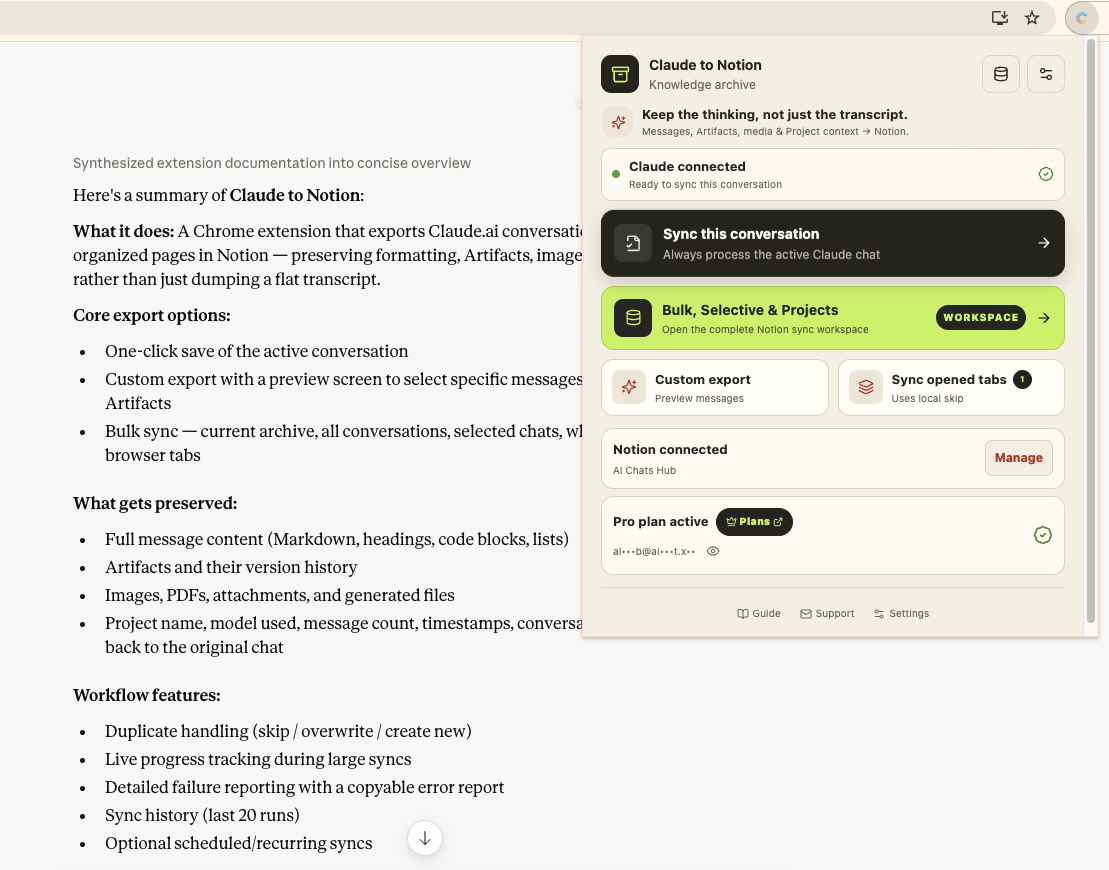
This is the fastest workflow for a completed research thread, a decision record, or a clean conversation that does not need editing.
Method 2: Export only selected messages
Long conversations often contain false starts, repeated prompts, private details, or intermediate answers that do not belong in the final archive.
Open Custom export to see a full-page preview before writing anything to Notion. You can:
- Select or clear individual messages
- Keep only user prompts
- Keep only Claude responses
- Include or exclude Artifacts
- Show or hide message times
- Confirm the Notion destination
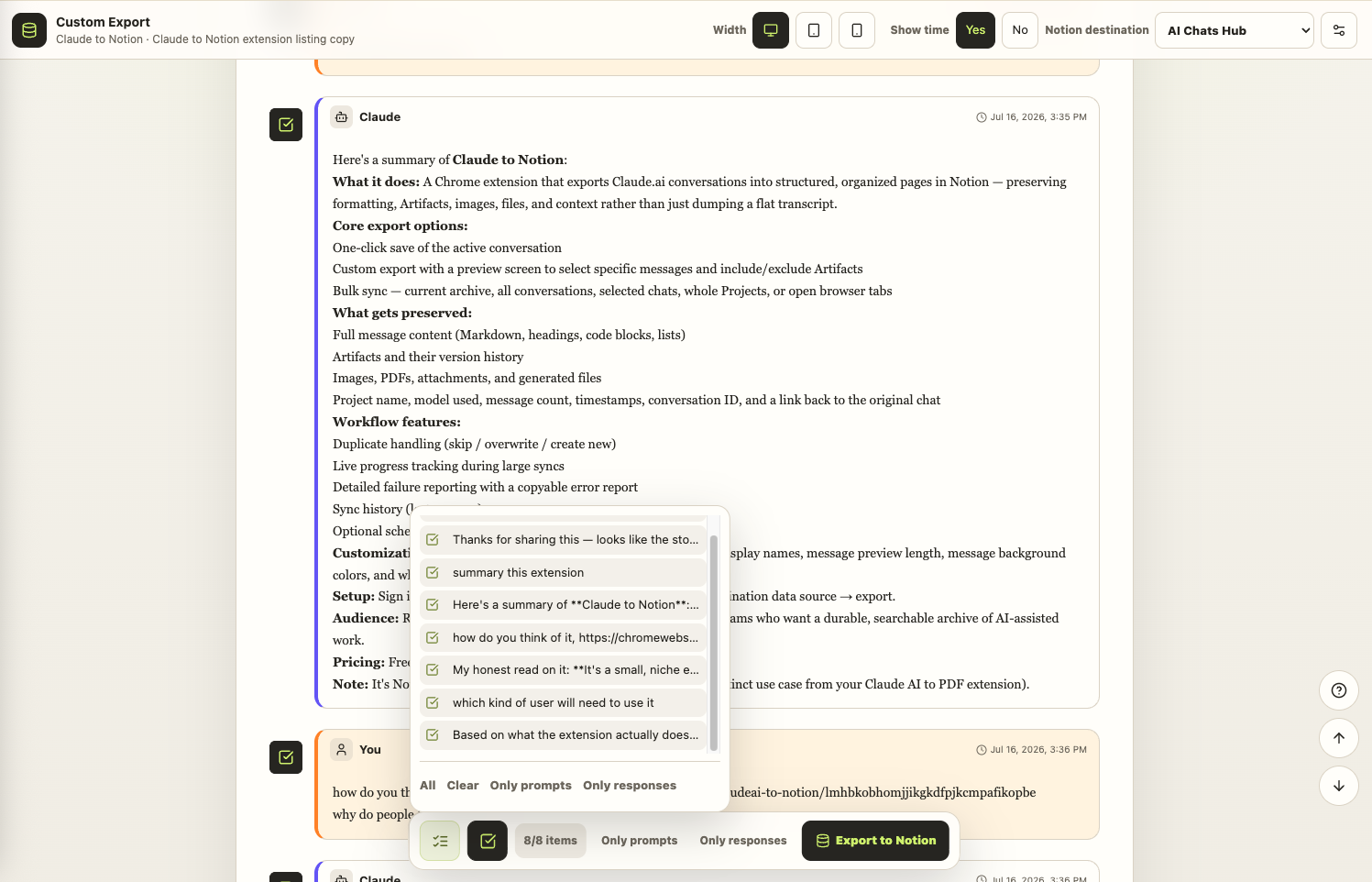
A curated export is often better for team handoffs. Keep enough prompts to explain why an answer exists, but remove detours that make the Notion page harder to scan.
Method 3: Sync all open Claude tabs
If a focused work session spans several conversations, keep those chats open and choose Sync opened tabs.
The extension counts valid Claude conversation tabs in the current Chrome profile and processes them as one run. Other sites and Claude pages that are not conversations are ignored.
This works well when you have already reviewed each chat and want to archive a small, intentional set without searching the complete history list.
Method 4: Sync the current history page
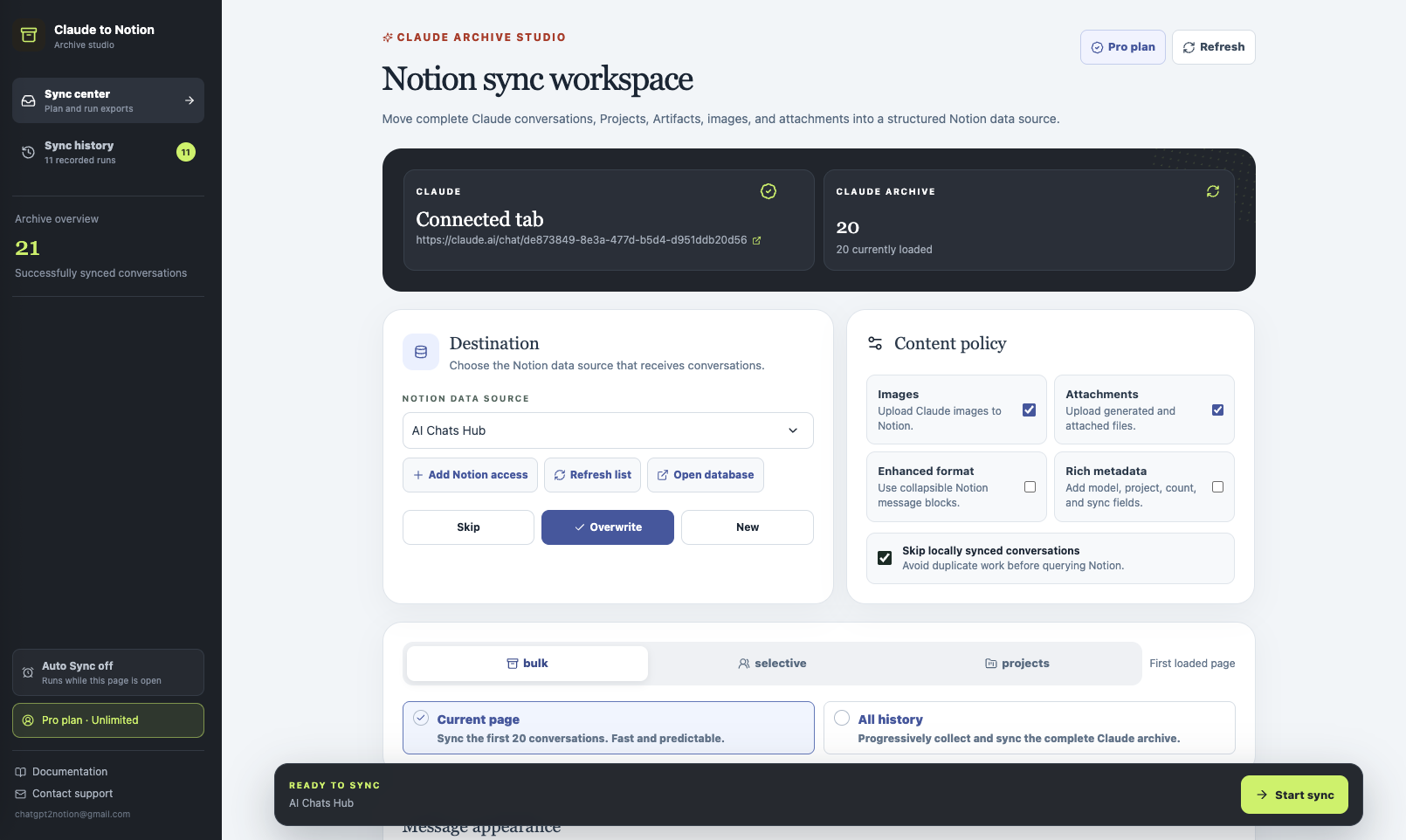
Open Bulk, Selective & Projects, then choose Bulk → Current page.
Current-page sync processes the first loaded group of conversations. It is faster and more predictable than a complete archive, making it a sensible first test for a new Notion destination or formatting policy.
Before starting, review four groups of settings:
- The Notion data source
- Skip, Overwrite, or New conflict handling
- Images, attachments, enhanced formatting, and rich metadata
- Local duplicate tracking
Method 5: Back up complete Claude history
Choose Bulk → All history to progressively collect and sync the complete archive.
Large histories take longer because the extension paginates the conversation list and processes one conversation at a time. Keep the Sync Center open until the final totals appear.
For a recurring archive:
- Use Skip as the Notion conflict mode.
- Enable Skip locally synced conversations.
- Keep images and attachments enabled only if you need them.
- Review failed items rather than immediately restarting the entire archive.
The extension retains up to 20 recent runs locally, so you can compare saved, skipped, failed, and cancelled totals.
Method 6: Select conversations from history
Use Selective when you know the topics or records you need but they are not already open in tabs.
- Search the loaded conversation list.
- Check the desired records.
- Use Select visible for a filtered group.
- Choose Load all if the needed item is not on the first page.
- Review Synced labels before starting.
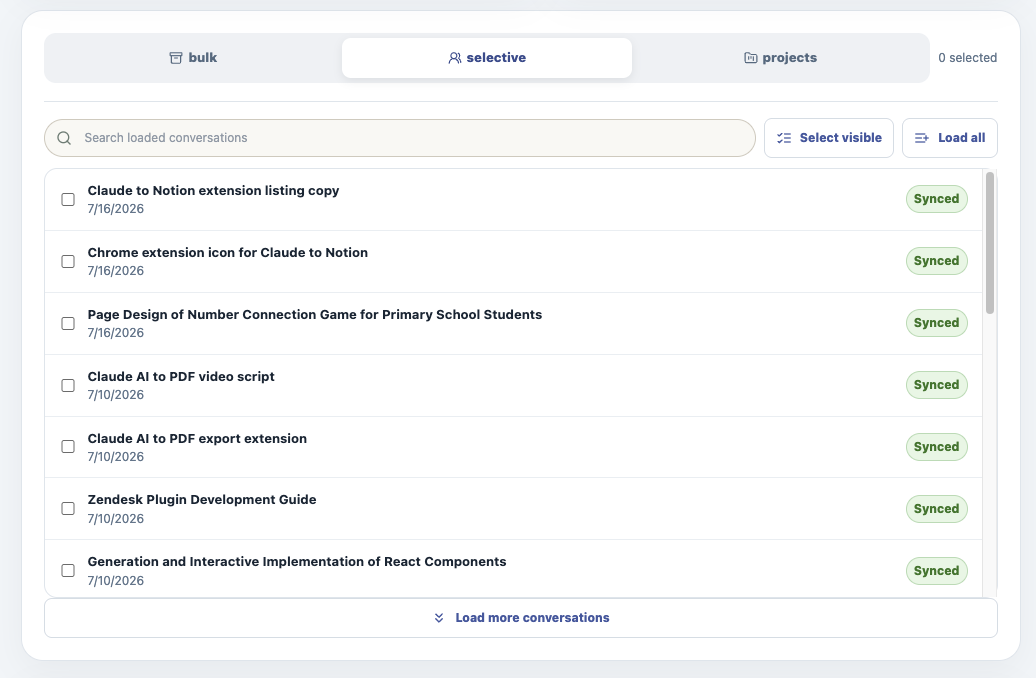
Selective Sync is useful for migrating one client, research topic, course, or quarter at a time. It also prevents a five-minute task from turning into a full account backup.
Method 7: Export Claude Projects
Claude Projects provide context that can disappear when conversations are exported as unrelated pages.
Open Projects, choose a Project, review the conversations inside it, and sync the complete loaded Project or a smaller selection.
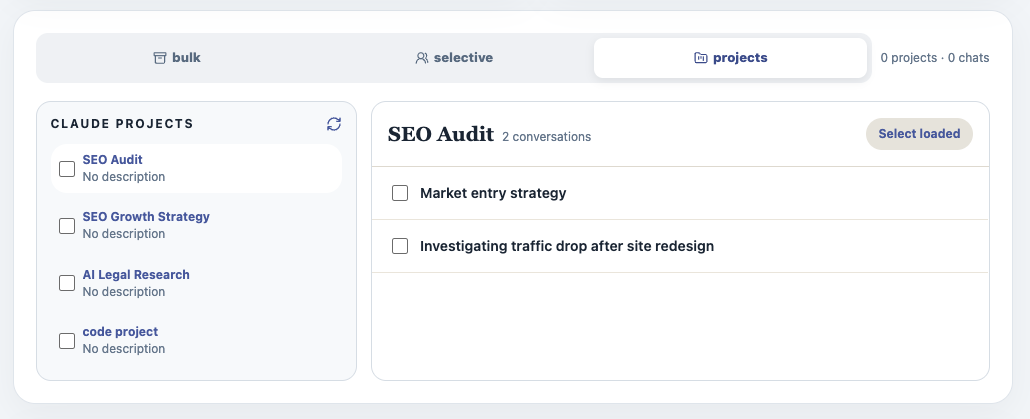
Enable rich metadata when you want the Project name stored with each Notion record. You can then build database views that group conversations by Project, source, status, week, or any other property in your knowledge system.
Choose the right conflict mode
Conflict handling determines what happens when a conversation appears to have been exported before.
| Mode | What it does | Best use |
|---|---|---|
| Skip | Leaves the existing Notion page unchanged | Recurring backups and hand-edited pages |
| Overwrite | Replaces the previous exported page | Refreshing an archive from the current Claude source |
| New | Creates another page | Keeping intentional snapshots or versions |
If teammates edit exported pages in Notion, default to Skip. Overwrite should be an explicit decision because a refreshed source copy can replace those destination edits.
Decide what belongs in Notion
The content policy changes both fidelity and export time.
- Images: Keep enabled for visual research, design work, and generated diagrams.
- Attachments: Keep enabled when files are part of the evidence or deliverable.
- Enhanced format: Use collapsible message blocks when long pages need a more compact outline.
- Rich metadata: Enable this when the Notion database will be filtered by model, Project, message count, or sync fields.
When a readable text-based attachment cannot be uploaded directly, the exporter can preserve its available source in a linked child page. That fallback is preferable to silently losing the file’s content.
Monitor a long sync
A percentage alone is not enough when one conversation contains many files. Claude to Notion reports detailed activity for:
- Conversation processing
- Attachment downloads from Claude
- File uploads to Notion
- Page-content batches
- Child-page creation
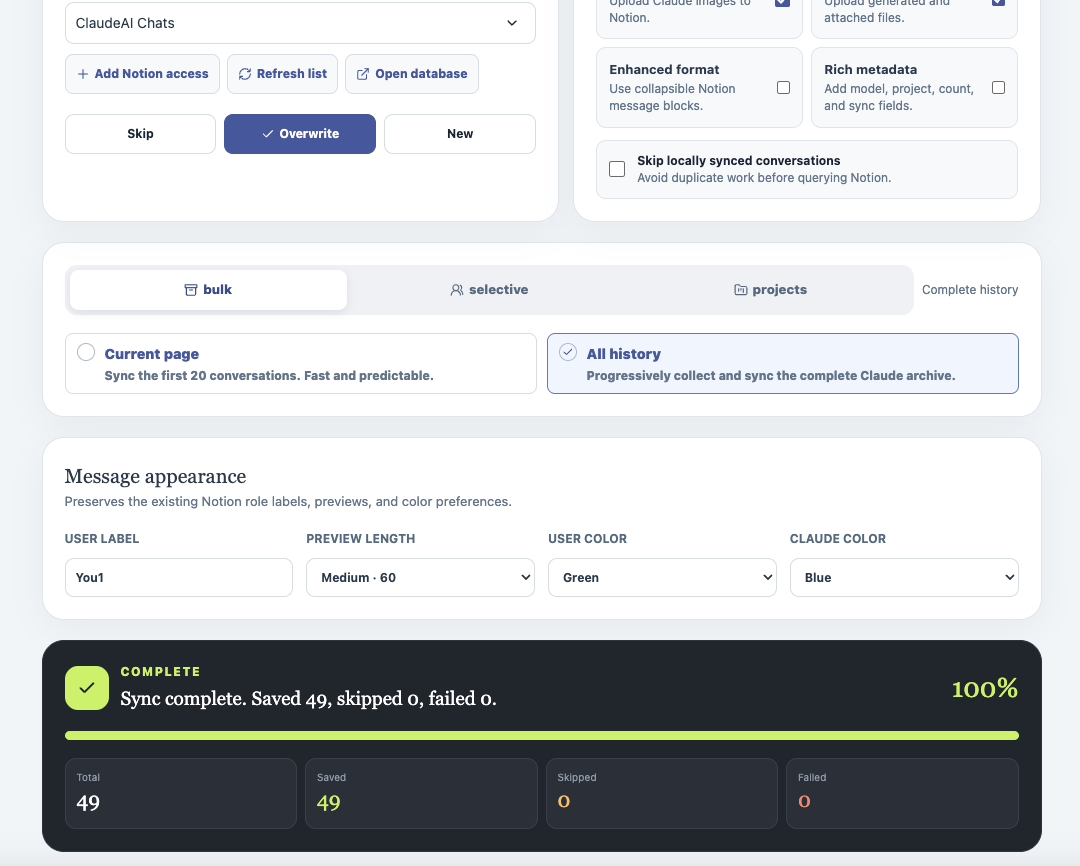
When a conversation fails, open its details. The run identifies the affected item, the stage, and the original API error. You can copy a sanitized developer report for support instead of sending a screenshot with no technical context.
A practical archive routine
For ongoing knowledge work, a simple routine is enough:
- Use one-click export for completed conversations that deserve immediate preservation.
- Use Custom Export for client-facing notes and curated documents.
- Use opened tabs at the end of a focused research session.
- Run Selective Sync weekly for important conversations you missed.
- Run a broader history backup less frequently with Skip enabled.
- Review failed items and destination quality before starting another large run.
Auto Sync can run recurring archives while the Sync Center remains open. It is useful during a working session, but it does not continue after that page is closed.
Free plan and verification
The free plan includes five lifetime successful saves, shared across the export workflows. Use them to test:
- The intended Notion destination
- Message formatting
- Artifact and attachment behavior
- Metadata fields
- Duplicate handling
Start with one representative conversation rather than the simplest chat in the account. A useful test includes the types of code, images, files, and structure that matter to your actual workflow.
Final checklist
Before treating the archive as complete, verify:
- The first and last messages are present
- Selected messages remain in the right order
- Code, headings, and lists are readable
- Required Artifacts, images, and files arrived
- Project and source metadata are correct
- The original Claude URL opens
- Duplicate handling matches your intention
- The run has no unresolved failed items
The goal is not to move every byte merely because it exists. The goal is to turn Claude work into a Notion record that remains understandable, searchable, and useful months later.
Install Claude to Notion or continue with the complete documentation.