Batch Export & Backup
Efficiently export multiple Gemini conversations to PDF in one operation
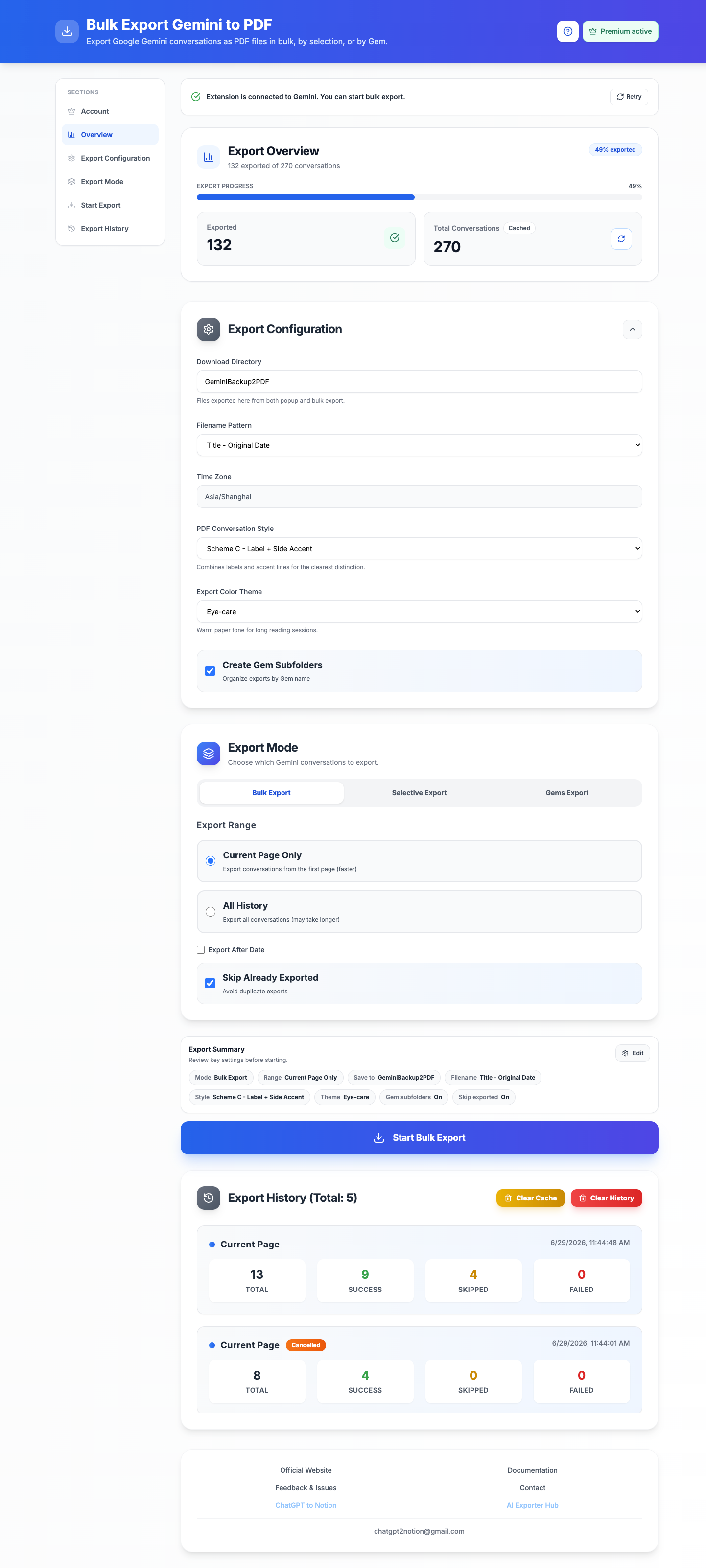
Batch Export allows you to export multiple Gemini conversations to PDF in one operation, creating a complete backup of your chat history.
Prerequisites
- Extension installed
- Gemini page open in a browser tab (gemini.google.com)
- Available export quota (free users: 5/day, subscribed: unlimited)
Access Batch Export
- Click the Bulk Export AI Chats from Gemini to PDF icon in your toolbar
- Click “Batch Export” button in the popup
- The batch export interface will open

Step 1: Verify Connection
Before starting batch export, verify the connection status:
✅ Connected to Gemini
- Extension is ready to export
- Conversation list detected
- Proceed with configuration
❌ Not Connected
- Open gemini.google.com in a tab
- Refresh the page
- Return to batch export interface
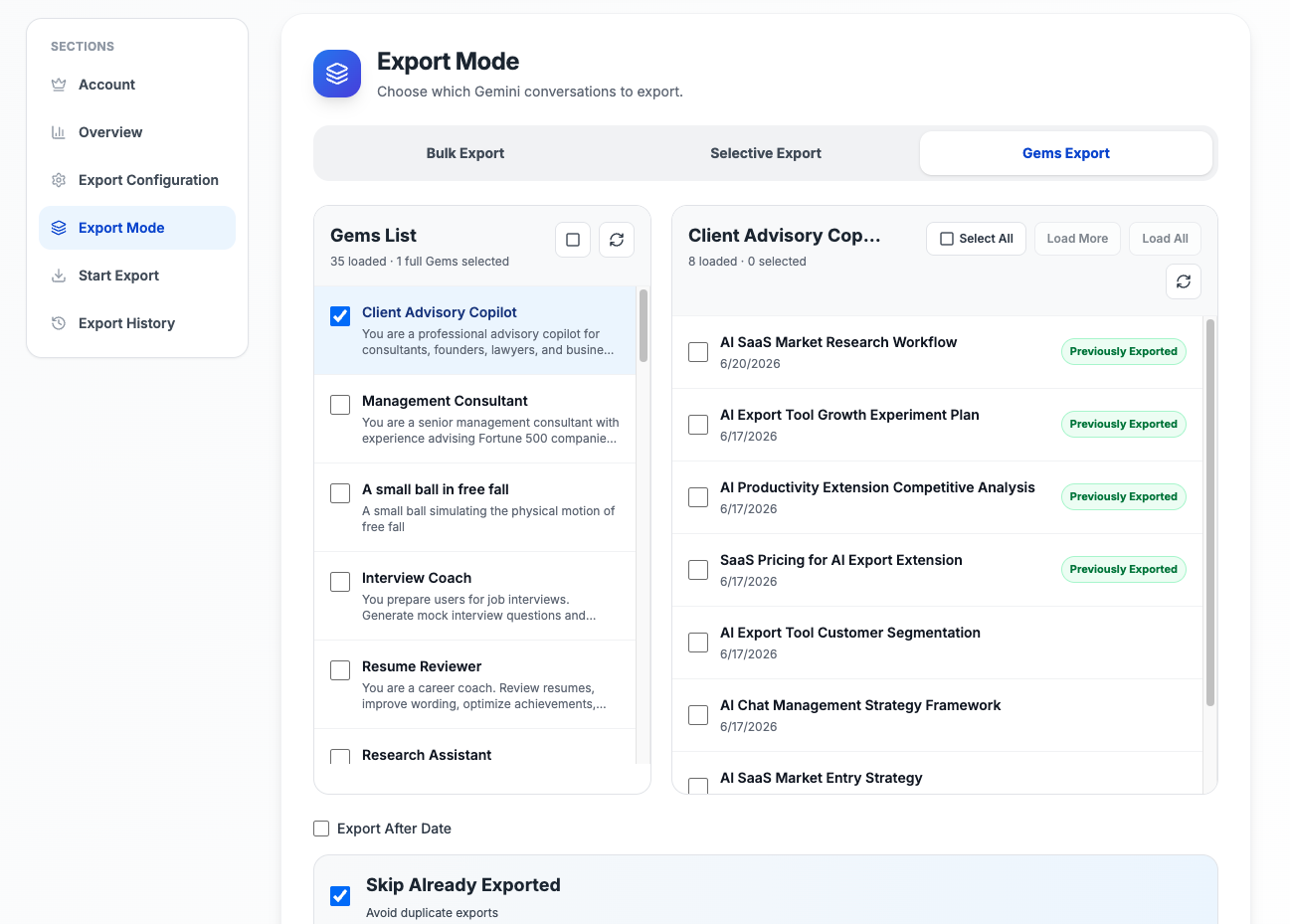
Step 2: Select Conversations
Choose which conversations to export:
Export All Conversations
- Exports all conversations in your Gemini history
- Automatically handles pagination
- May take several minutes for large histories
Export Recent Conversations
- Export the most recent N conversations
- Faster than exporting all
- Recommended for regular backups
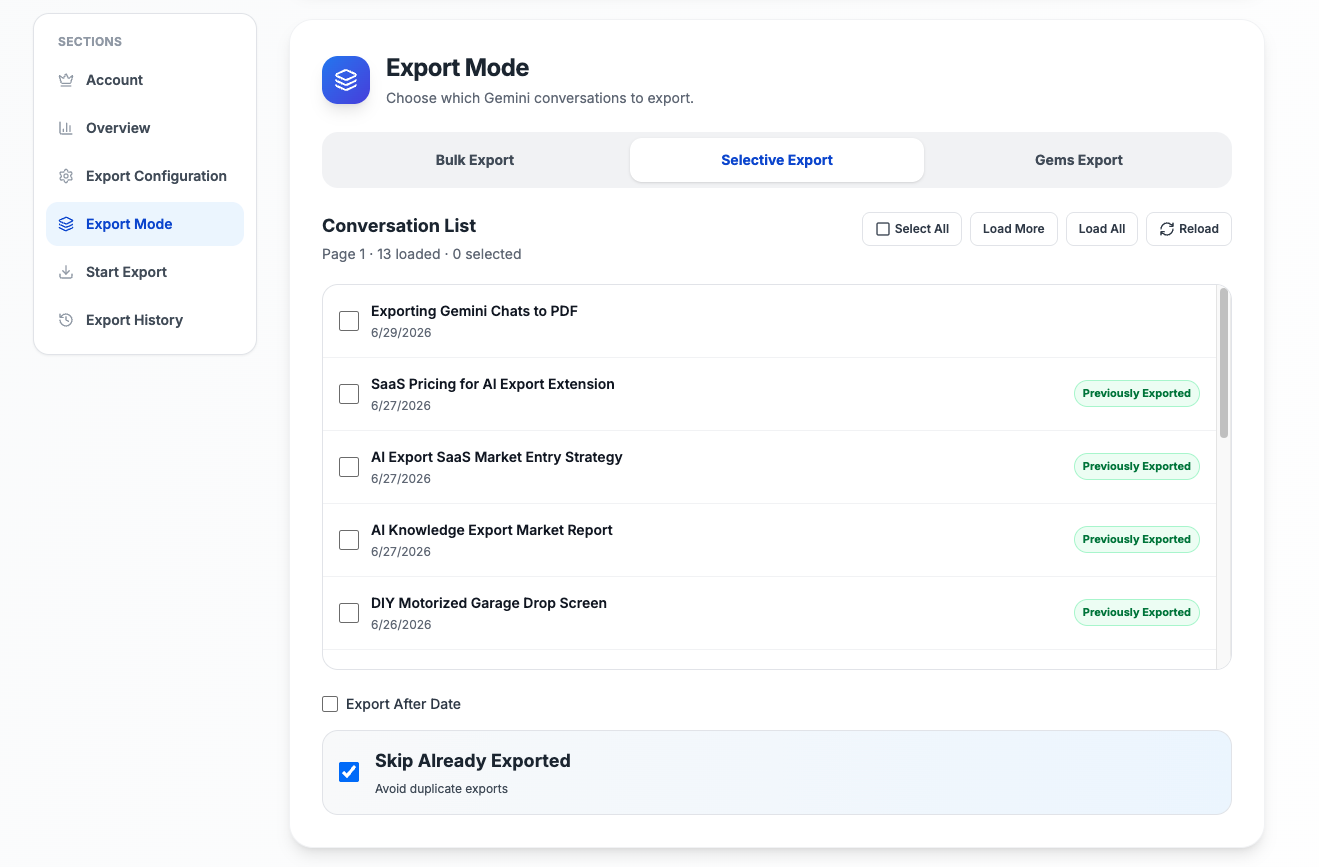
Select Specific Conversations
- Manually select conversations from the list
- Use checkboxes to select/deselect
- View conversation titles and dates
Step 3: Configure Export Settings
Skip Already Exported
Enabled (Recommended):
- Skips conversations that have already been exported
- Prevents duplicate PDFs
- Faster export process
- Default behavior
Disabled:
- Re-exports all selected conversations
- Overwrites existing PDFs (Chrome adds numbers to filenames)
- Use when you need fresh copies
Download Location
Choose where PDFs are saved:
- Browser default: Uses Chrome’s default download folder
- Custom folder: Specify a subfolder (e.g., “Gemini Backups”)
- Ask each time: Chrome prompts for location for each PDF
File Naming Pattern
Choose how PDFs are named:
- Default:
Gemini_[Title]_[Date].pdf - Date first:
[Date]_Gemini_[Title].pdf - Title only:
[Title].pdf
Step 4: Start Batch Export
- Review your configuration
- Click “Start Batch Export” button
- Monitor the progress bar and status messages
- Wait for export to complete
Important: Keep the batch export page open during the process. Do not close the browser or navigate away.
Export Progress
During batch export, you’ll see:
Progress Bar
- Shows percentage complete
- Updates in real-time
- Estimated time remaining
Status Messages
- “Processing conversation 5 of 20…”
- “Generating PDF for [Conversation Title]…”
- “Skipping already exported conversation…”
Live Statistics
- Total: Total conversations to process
- Exported: Successfully exported
- Skipped: Already exported (if skip enabled)
- Failed: Failed to export (with error details)
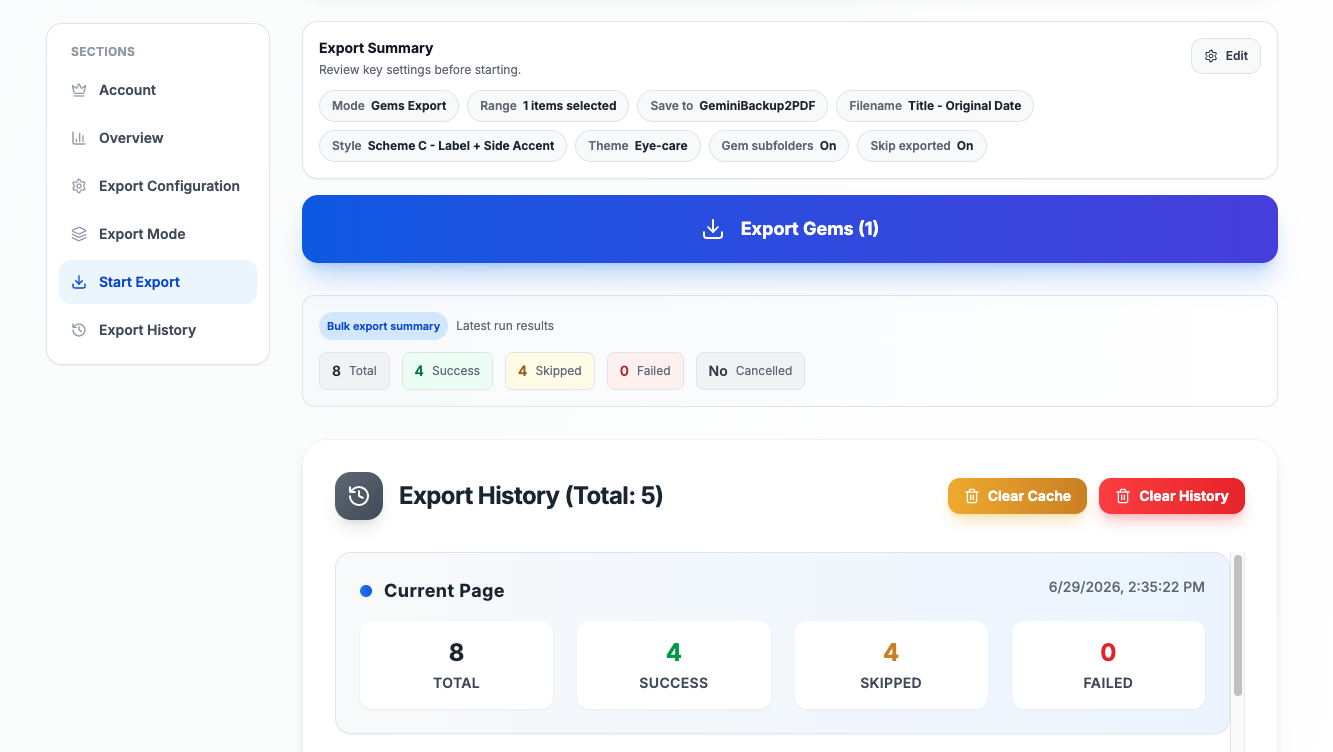
Export Results
After batch export completes, you’ll see a detailed summary:
Success Count
- Number of conversations successfully exported
- List of exported conversation titles
- Links to open PDFs
Skipped Count
- Number of conversations skipped (already exported)
- List of skipped conversation titles
- Option to force re-export
Failed Count
- Number of conversations that failed to export
- Error details for each failure
- Option to retry failed exports
Export History
View all past batch export operations:
- Scroll down to “Export History” section
- See details for each export:
- Timestamp
- Total/Success/Skipped/Failed counts
- Conversation list
- Available actions:
- View details
- Retry failed exports
- Delete history record
- Clear all history
Performance & Limits
Free Tier
- Daily limit: 5 exports per day
- Quota reset: Midnight (local time)
- Batch export: Counts toward daily limit
Subscribed Users
- Unlimited exports: No daily limit
- Priority processing: Faster export speed
- Advanced features: Custom templates, bulk operations
Performance Tips
- Average speed: ~3-5 seconds per conversation
- Large conversations: May take 10-20 seconds each
- Keep tab active: Don’t minimize or switch tabs during export
- Stable internet: Required for loading conversation content
- For large batches (100+): Consider exporting in smaller chunks
Handling Errors
”Connection Lost”
Cause: Internet connection interrupted or Gemini page closed
Solution:
- Check internet connection
- Ensure Gemini tab is still open
- Refresh Gemini page
- Restart batch export
”Export Failed for Some Conversations”
Cause: Individual conversations may fail due to:
- Corrupted conversation data
- Missing content
- Network timeout
Solution:
- Check export results for error details
- Use “Retry Failed” button
- If problem persists, try exporting individually
”Daily Limit Reached”
Cause: Free tier daily limit (5 exports) reached
Solution:
- Wait until midnight for reset
- Or upgrade to unlimited exports
- Batch export will stop when limit is reached
”Browser Out of Memory”
Cause: Too many conversations being processed simultaneously
Solution:
- Close other browser tabs
- Restart Chrome
- Export in smaller batches (e.g., 20 at a time)
Best Practices
Regular Backups
- Weekly backups: Export new conversations weekly
- Enable skip: Avoid re-exporting old conversations
- Organize by date: Use date-first naming pattern
Large History Archives
- Start small: Test with 10-20 conversations first
- Export in chunks: Break large histories into manageable batches
- Monitor progress: Watch for errors and retry if needed
Organizing Exports
- Use subfolders: Create folders by month or topic
- Consistent naming: Stick to one naming pattern
- Tag important exports: Add prefixes to critical conversations
Troubleshooting
Batch Export Won’t Start
Solution:
- Verify Gemini page is open
- Check connection status
- Refresh Gemini page
- Reopen batch export interface
Export Stops Midway
Solution:
- Check internet connection
- Ensure Gemini tab is active
- Check browser console for errors
- Restart batch export
Some PDFs are Blank
Solution:
- Retry failed exports individually
- Open conversation in Gemini to verify content exists
- Check if conversation is corrupted
- Report issue if problem persists
PDFs Missing Images
Solution:
- Ensure stable internet during export
- Wait for images to load before export
- Check if images are visible in Gemini
- Retry export for affected conversations
FAQ
Q: Can I export while using Gemini? A: Yes, but keep the Gemini tab active. Don’t navigate away during batch export.
Q: How long does batch export take? A: Average 3-5 seconds per conversation. 100 conversations ≈ 5-8 minutes.
Q: Can I cancel a running batch export? A: Yes, click “Cancel Export” button. Already-exported PDFs will remain saved.
Q: Do I need to keep the batch export page open? A: Yes, closing the page will stop the export process.
Q: What happens if my computer goes to sleep during export? A: Export will pause. Wake the computer and restart the batch export.
Q: Can I export conversations from different Gemini accounts? A: Yes, but you need to switch accounts in Gemini and run separate batch exports.
For more help, contact chatgpt2notion@gmail.com or visit our GitHub Issues.
Need more help? Contact Support
Independent tool notice
Built for exporting from Google Gemini. This project is independent and is not affiliated with Google LLC.