AI Logo
AI Exporter Hub

Batch Sync & Backup

Efficiently sync multiple Grok conversations to Notion in one operation with batch export

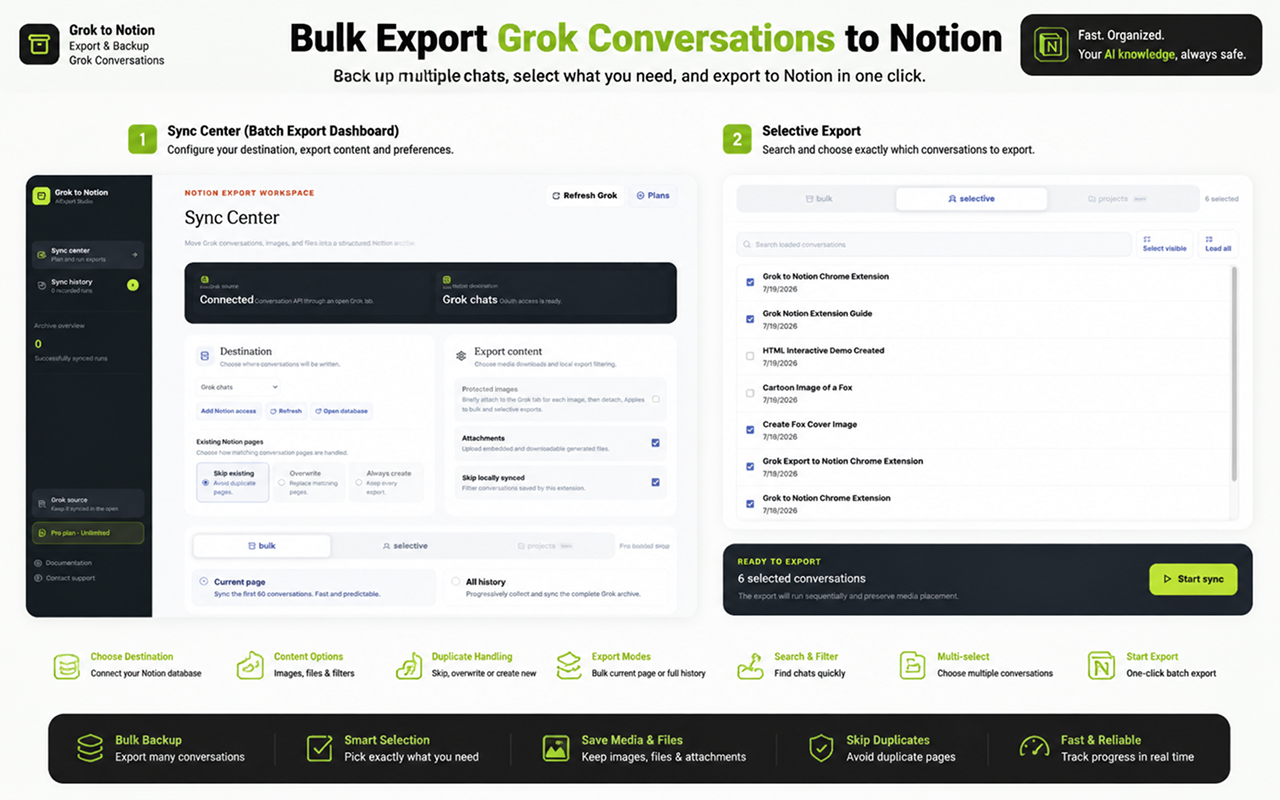
Batch Sync allows you to export multiple Grok conversations to Notion in one operation, creating a complete backup of your chat history.

Prerequisites

  • Completed Notion authorization
  • A Notion database selected for storing conversations
  • Grok page must be open in a browser tab

Access Batch Sync

Open the extension options page by clicking “Go Bulk Export” button in the popup, or right-click the extension icon and select “Options”.

Batch Sync Access

Step 1: Connect to Notion

If not already connected, click “Connect to Notion” button and complete the authorization flow.

Step 2: Select Target Database

Select your target Notion database from the dropdown menu. If you don’t see your database, click the refresh icon to reload the list.

Step 3: Configure Sync Settings

Sync Mode

Choose what happens when a conversation already exists in Notion:

  • Skip Mode: Leave existing pages unchanged (recommended)

    • Preserves your manual edits in Notion
    • Faster sync process
    • Default behavior
  • Overwrite Mode: Replace existing pages with new content

    • Old versions moved to trash
    • Use when you need fresh copies
  • Duplicate Mode: Always create new pages

    • Creates new pages even if they already exist
    • Useful for versioning

Export Range

Choose how many conversations to export:

  • Current Page Only: Export latest 60 conversations (faster)

    • Recommended for regular syncs
    • Completes in minutes
  • All History: Export all conversations (complete backup)

    • May take longer depending on history size
    • Fetches all pages using pagination

Skip Already Exported

Enabled (Recommended):

  • Skips conversations that have already been synced
  • Avoids duplicates
  • Faster sync process
  • Preserves your Notion edits

Disabled:

  • Re-syncs all conversations in the selected range
  • Use when you want to refresh all content

Step 4: Verify Subscription Status

Free users can export up to 5 conversations per sync. Subscribed users get unlimited exports.

To verify your subscription:

  1. Enter your email address
  2. Click “Verify” button
  3. Your subscription status will be displayed

Step 5: Start Sync

  1. Review your configuration
  2. Click “Start Sync” button
  3. Monitor the progress bar and status messages
  4. Wait for sync to complete

Important: Keep the options page open during sync. Do not close the browser or navigate away.

Cancel Sync

If you need to stop the sync:

  • Click the “Cancel” button
  • Already-synced items will remain in Notion
  • You can resume later

Sync Results

After sync completes, you’ll see a summary:

  • Total: Total conversations processed
  • Success: Conversations saved successfully
  • Failed: Conversations that failed to save
  • Skipped: Already-synced conversations (if skip enabled)
  • Cancelled: Whether sync was cancelled
  • Duration: Time taken for the sync

Sync Results

Sync History

View all past sync operations:

  1. Scroll down to “Sync History” section
  2. See details for each sync:
    • Timestamp
    • Export type (Current Page / All History)
    • Success/failed/skipped counts
  3. Available actions:
    • Clear all history
    • Clear cache (exported IDs)

Fail History

If any conversations fail to export, they’re tracked in Fail History:

  1. View failed items with error details
  2. Download fail history as text file
  3. Clear fail history when resolved

Performance & Limits

Free Tier:

  • 5 conversations per sync session
  • Quotas reset daily

Subscribed Users:

  • Unlimited syncs

Performance Tips:

  • Average: ~3 seconds per conversation
  • Keep Grok tab active during sync
  • Stable internet connection required
  • For large batches (100+), consider syncing in smaller chunks

Troubleshooting

“Can’t connect to Grok page”:

“Grok is open, but the extension can’t connect”:

  • Refresh your Grok tab
  • Wait a few seconds
  • Try again

“Could not find page with ID”:

  • Database may have been deleted
  • Re-authorize Notion connection
  • Select a different database

Sync stops midway:

  • Check internet connection
  • Ensure Grok tab is active
  • Refresh Grok page and retry

Some conversations failed:

  • Check fail history for error details
  • Failed items can be retried individually
  • May be due to rate limits or network issues

Best Practices

  1. Start small: Test with Current Page first
  2. Use skip mode: Preserves your Notion edits
  3. Monitor progress: Don’t close browser during sync
  4. Check results: Review sync history after completion
  5. Regular backups: Schedule periodic syncs to keep your archive up to date

FAQ

Q: Can I sync while using Grok? A: Yes, but keep the tab active. Don’t navigate away during sync.

Q: What happens to my Notion edits? A: With “Skip Already Exported” ON, your edits are preserved. With it OFF, pages may be overwritten depending on sync mode.

Q: How do I sync only new conversations? A: Enable “Skip Already Exported” and select your desired range. Already-synced items will be skipped automatically.

Q: Can I cancel a running sync? A: Yes, click the “Cancel” button. Already-synced items will remain in Notion.

Q: Do I need to keep the options page open? A: Yes, the sync process requires the options page to remain open. Closing it will stop the sync.

For more help, contact chatgpt2notion@gmail.com

Need more help? Contact Support