
Batch Export & Backup
Efficiently export multiple Gemini conversations to Markdown files in one operation
Batch Export allows you to export multiple Gemini conversations to Markdown files in one operation, creating a complete backup of your chat history.
Access Batch Export
Step 1: Open Extension Options
Right-click the extension icon in your Chrome toolbar and select “Options”.
Or click the extension icon and select “Go to Options” from the popup.
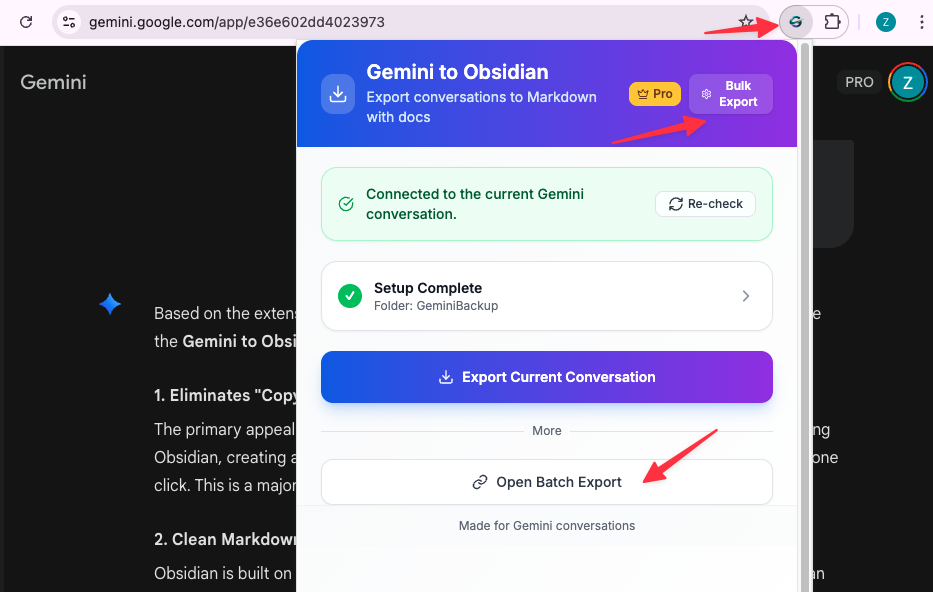
Step 2: Navigate to Batch Export
The options page opens with the batch export interface.
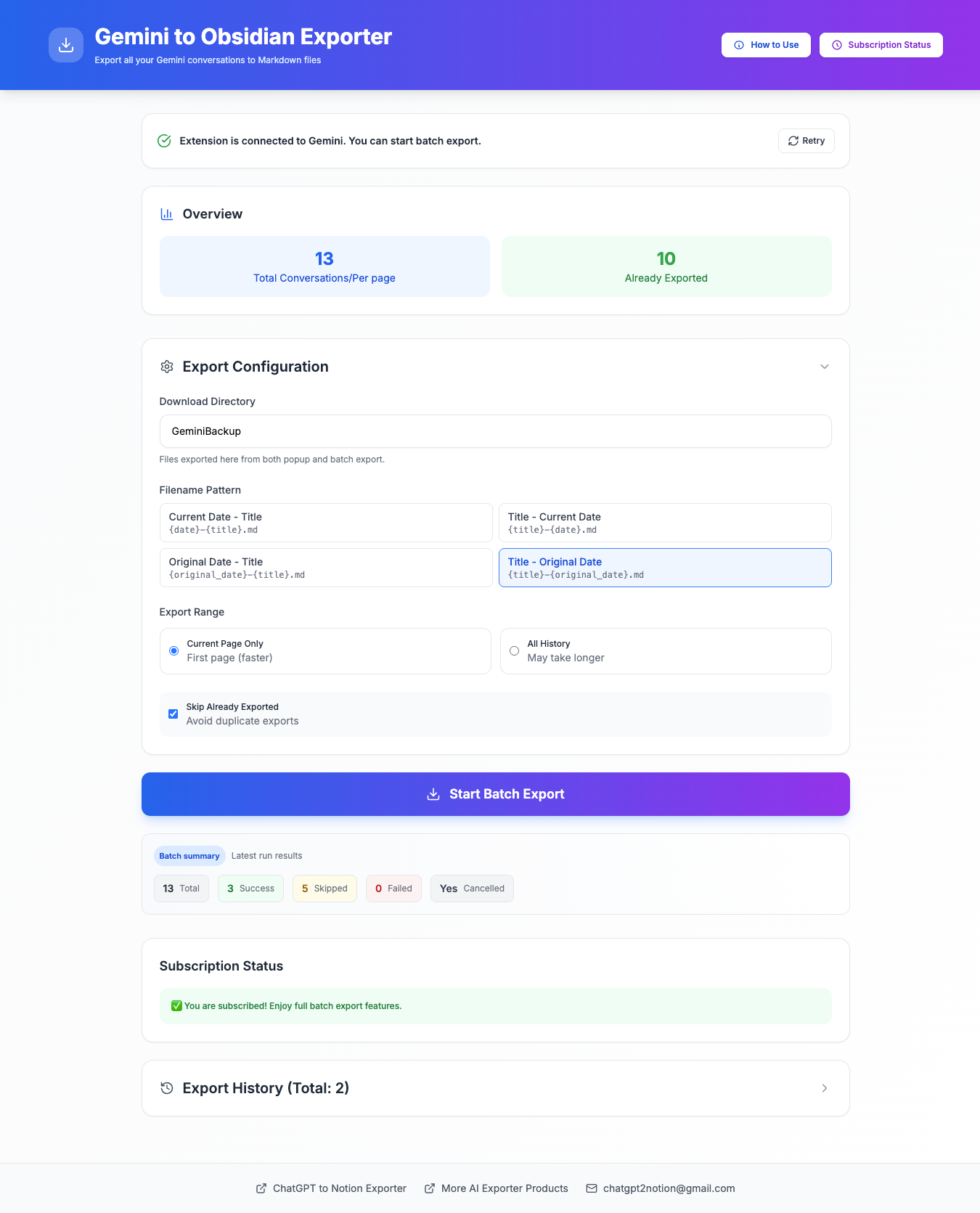
Configure Batch Export
Select Export Range
Choose what to export:
Current Page (First Page):
- Exports conversations visible on the current page
- Typically includes the most recent ~20 conversations
- Fastest option for quick backups
All History (All Pages):
- Fetches and exports your entire Gemini chat history
- Automatically paginates through all pages
- Takes longer but creates a complete archive
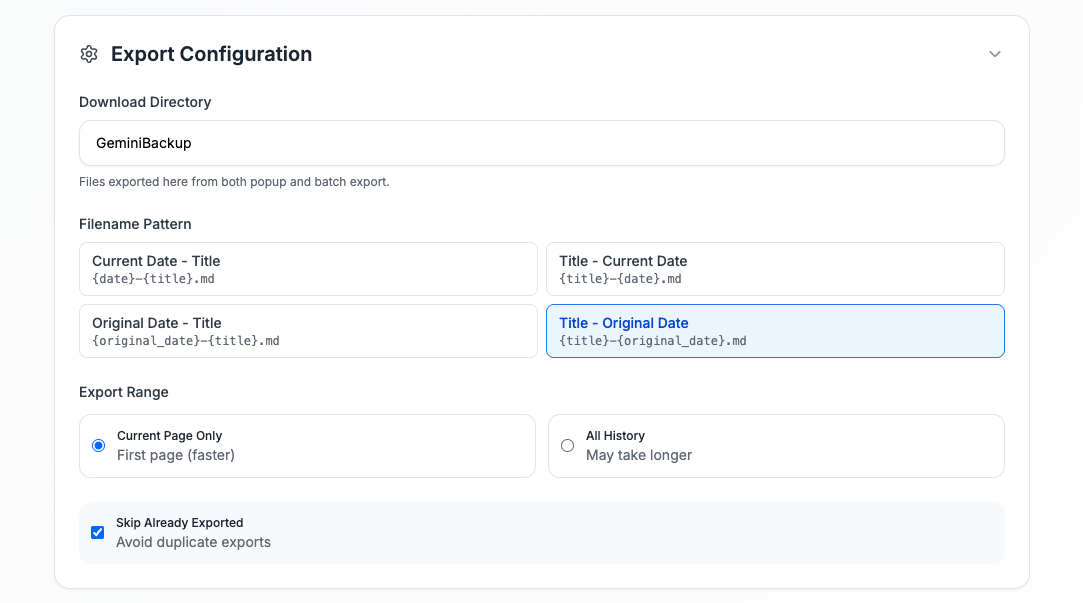
Configure Deduplication
Skip Already Exported Records (Recommended):
- Enabled: Skips conversations you’ve already exported
- Disabled: Re-exports all conversations in the selected range
The extension tracks exported conversation IDs to prevent duplicates.
When to enable:
- Regular incremental backups
- Syncing only new conversations
- Preserving your existing exports
When to disable:
- Fresh export of everything
- Re-exporting after conversation updates
- Creating a new backup from scratch
Set Download Directory
Configure where files are saved:
- Enter your desired directory name (e.g.,
ObsidianVault/GeminiChats) - Leave blank to use browser’s default Downloads folder
- Setting applies to both single and batch exports
Start Batch Export
Step 1: Review Configuration
Verify your settings:
- Export range (current page or all history)
- Deduplication preference
- Download directory
Step 2: Begin Export
Click the “Start Batch Export” button.
Step 3: Monitor Progress
Watch the real-time progress display:
- Progress bar: Visual indication of completion
- Status message: Current operation (fetching, exporting, etc.)
- Counts: Success, failed, and skipped items
- Percentage: Overall completion
Important: Keep the options page open during export. Do not close the browser or navigate away.
Step 4: Review Results
After export completes, you’ll see a summary:
- Success Count: Conversations exported successfully
- Failed Count: Conversations that failed to export
- Skipped Count: Already-exported conversations (if deduplication enabled)
- Total Time: Duration of the export operation
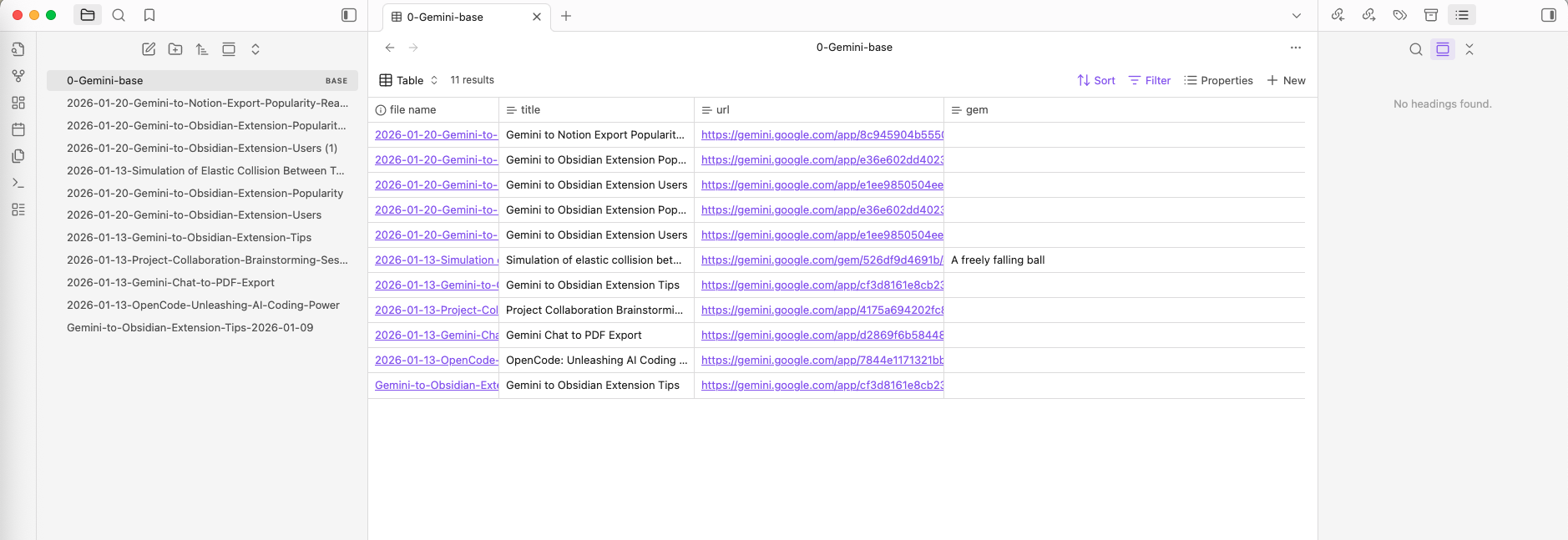
Export History
View all past export operations:
Access History
Scroll down to the “Export History” section on the options page.
History Details
Each history entry shows:
- Timestamp: When the export occurred
- Export Type: Single export or batch export
- Range: Current page or all history
- Success/Failed/Skipped: Detailed counts
- Actions: View details or delete record
Manage History
Available actions:
- View Details: Expand to see full export information
- Delete Record: Remove individual history entry
- Clear All History: Remove all history records
- Clear Failed Only: Remove only failed export records
Performance & Limits
Free Tier
- Batch export limit: 10 conversations per session
- Daily limit: Resets every 24 hours
- Single exports: Unlimited
Pro Version
- Unlimited batch exports: No session or daily limits
- Priority support: Faster response to issues
- Early access: New features before public release
Performance Tips
Average export speed: ~2-3 seconds per conversation
For large batches (100+ conversations):
- Ensure stable internet connection
- Keep the options page active and visible
- Don’t put your computer to sleep
- Consider exporting in smaller chunks if you encounter issues
Optimize for speed:
- Use “Current Page” for quick incremental backups
- Enable deduplication to skip already-exported conversations
- Export during off-peak hours for better Gemini API responsiveness
Best Practices
- Start small: Test with “Current Page” first
- Enable deduplication: Prevents duplicate files and saves time
- Regular backups: Schedule periodic exports to keep your archive up to date
- Monitor progress: Don’t close browser during export
- Check results: Review export history after completion
- Organize in Obsidian: Use tags, folders, and links to organize exported chats
Troubleshooting
Export stops midway:
- Check internet connection
- Ensure Gemini page is accessible
- Refresh the options page and retry
Some conversations failed:
- Check export history for error details
- Failed items can be retried individually
- May be due to rate limits or network issues
“Gemini page required” error:
- Open https://gemini.google.com/ in a tab
- Refresh the page
- Return to options and retry
Deduplication not working:
- Verify “Skip Already Exported Records” is enabled
- Check that conversation IDs are being tracked
- Clear export history and start fresh if needed
Files not downloading:
- Check browser download settings
- Verify download directory permissions
- Ensure downloads are not blocked by browser
For more help, visit our Troubleshooting Guide.
Need more help? Contact Support