
One-Click Export
Learn how to export individual Gemini conversations to Markdown files
Quick Start
After installing the extension, you can export any Gemini conversation to a Markdown file with a single click.
Export Current Conversation
Step 1: Open a Gemini Chat
Navigate to any conversation on gemini.google.com.
Step 2: Click Extension Icon
Click the Gemini to Obsidian extension icon in your Chrome toolbar.
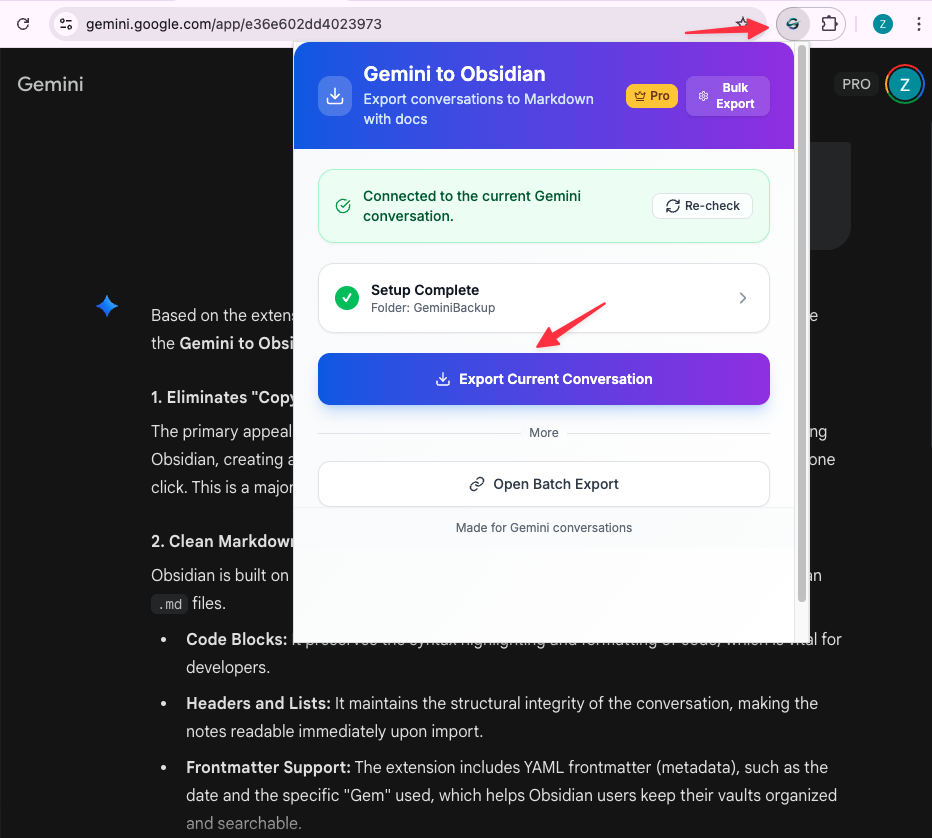
Step 3: Export
In the popup, you’ll see:
- Current conversation title
- Download directory setting (optional)
- “Export Current Chat” button
Click the green “Export Current Chat” button.
Step 4: File Downloaded
The Markdown file will be automatically downloaded to:
- Your configured download directory (if set)
- Your browser’s default Downloads folder (if not configured)
Configure Download Directory
To export directly to your Obsidian vault:
Step 1: Open Extension Popup
Click the extension icon on any Gemini page.
Step 2: Set Download Directory
In the popup, you’ll see a “Download Directory” input field.
Enter your desired folder name (e.g., ObsidianVault/GeminiChats).

Step 3: Save Setting
The setting is automatically saved. All future exports will go to this directory.
Note: The directory path is relative to your browser’s default Downloads folder. For example:
- Setting:
ObsidianVault/GeminiChats - Actual path:
~/Downloads/ObsidianVault/GeminiChats/
To export directly to your Obsidian vault, you can:
- Set your Obsidian vault location as your browser’s default download folder
- Or move the downloaded files to your vault manually
- Or use a symbolic link to connect your Downloads folder to your vault
File Naming Convention
Exported files are named using this format:
YYYY-MM-DDTHH-mm-ss-Conversation-Title.mdExample:
2026-01-18T14-30-00-How-to-build-a-Chrome-extension.mdThis naming convention:
- Sorts chronologically by default
- Includes timestamp for uniqueness
- Preserves conversation title for searchability
- Uses ISO 8601 format for international compatibility
Markdown Format
The exported Markdown file contains:
# Conversation Title

## User
Your prompt here...

## Gemini
AI response here...

## User
Next prompt...

## Gemini
Next response...
Code blocks, formatting, and structure are preserved:
## Gemini
Here's a Python example:

```python
def hello_world():
    print("Hello, World!")
```
What Gets Exported
The export includes:
- Complete conversation history
- All user prompts
- All AI responses
- Code blocks with syntax preservation
- Formatting and structure
- Conversation metadata
The export does NOT include:
- Images or attachments (not yet supported)
- Conversation settings or preferences
- Related conversations or suggestions
Tips
- Pin the extension: Keep it easily accessible in your toolbar
- Set download directory: Configure once, export seamlessly forever
- Export regularly: Build your knowledge base incrementally
- Use descriptive titles: Rename conversations in Gemini before exporting for better file names
Troubleshooting
Export button not working:
- Ensure you’re on a Gemini conversation page
- Refresh the page and try again
- Check browser console for errors
File not downloading:
- Check your browser’s download settings
- Ensure downloads are not blocked
- Verify you have write permissions to the download directory
Formatting issues:
- The extension preserves Gemini’s output format
- Some complex formatting may not translate perfectly to Markdown
- Code blocks should always export correctly
For more help, visit our Troubleshooting Guide.
Need more help? Contact Support