
Exporting Individual Conversations
Learn how to save single Gemini conversations to Notion with one-click export
Quick Start
After installing the extension and connecting to Notion, you can export any Gemini conversation with a single click.
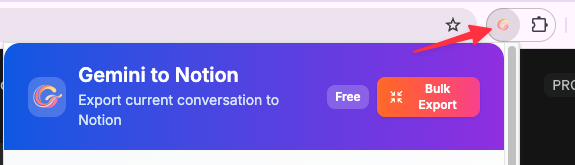
Initial Setup
Complete this one-time authorization before saving conversations.
Notion Authorization
- Click the extension icon and select “Connect to Notion”
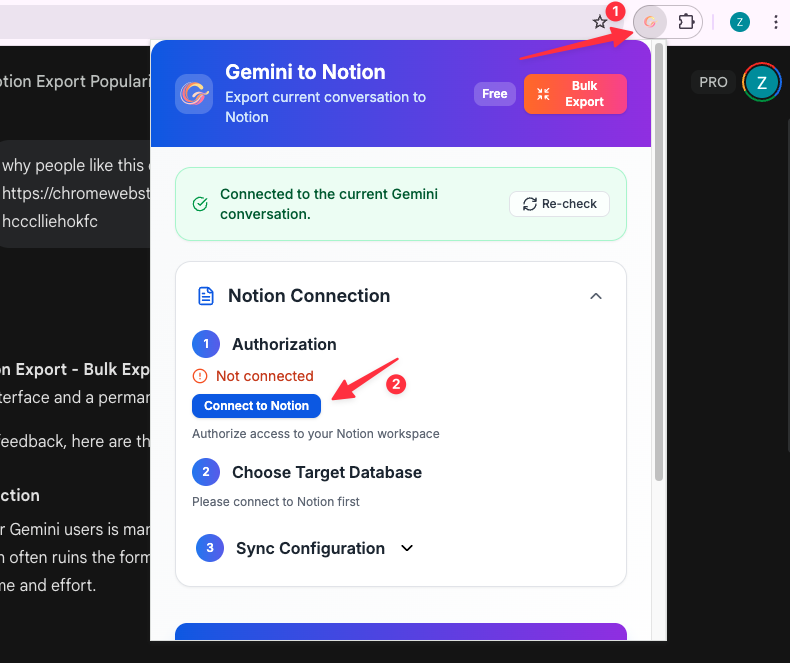
-
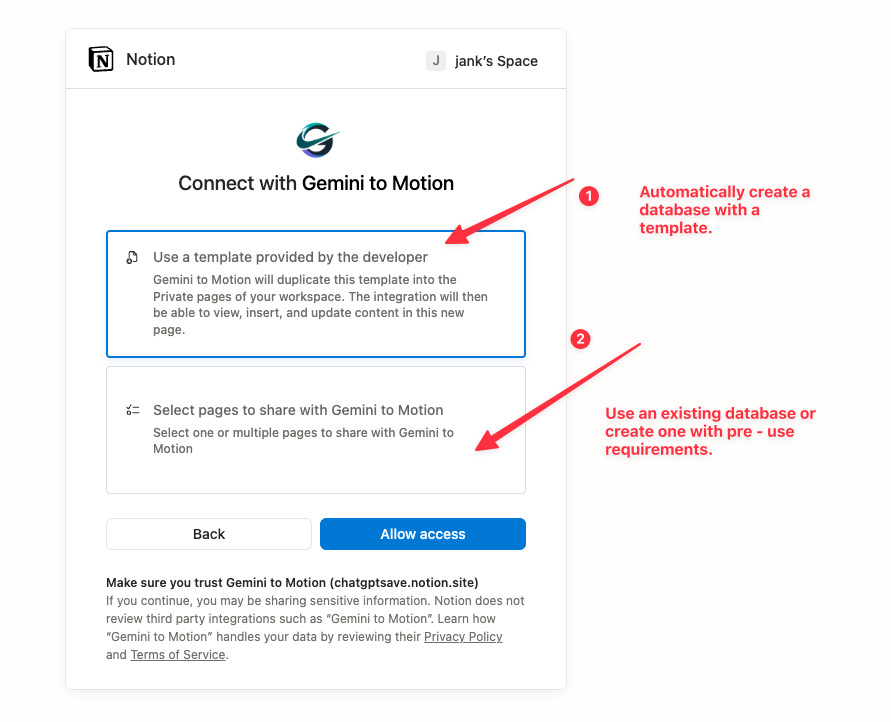
In the Notion authorization window:
- Select your workspace
- Click “Next”
-
Choose your save location:
- Select “Save Page”
- Choose an existing page or create a new one
- Click “Allow Access”
-
After authorization:
- You’ll be redirected to Notion
- Close the page and return to Gemini
- Select your target database from the dropdown
Exporting Current Conversation
The simplest way to save a conversation:
- Open any Gemini conversation at https://gemini.google.com/
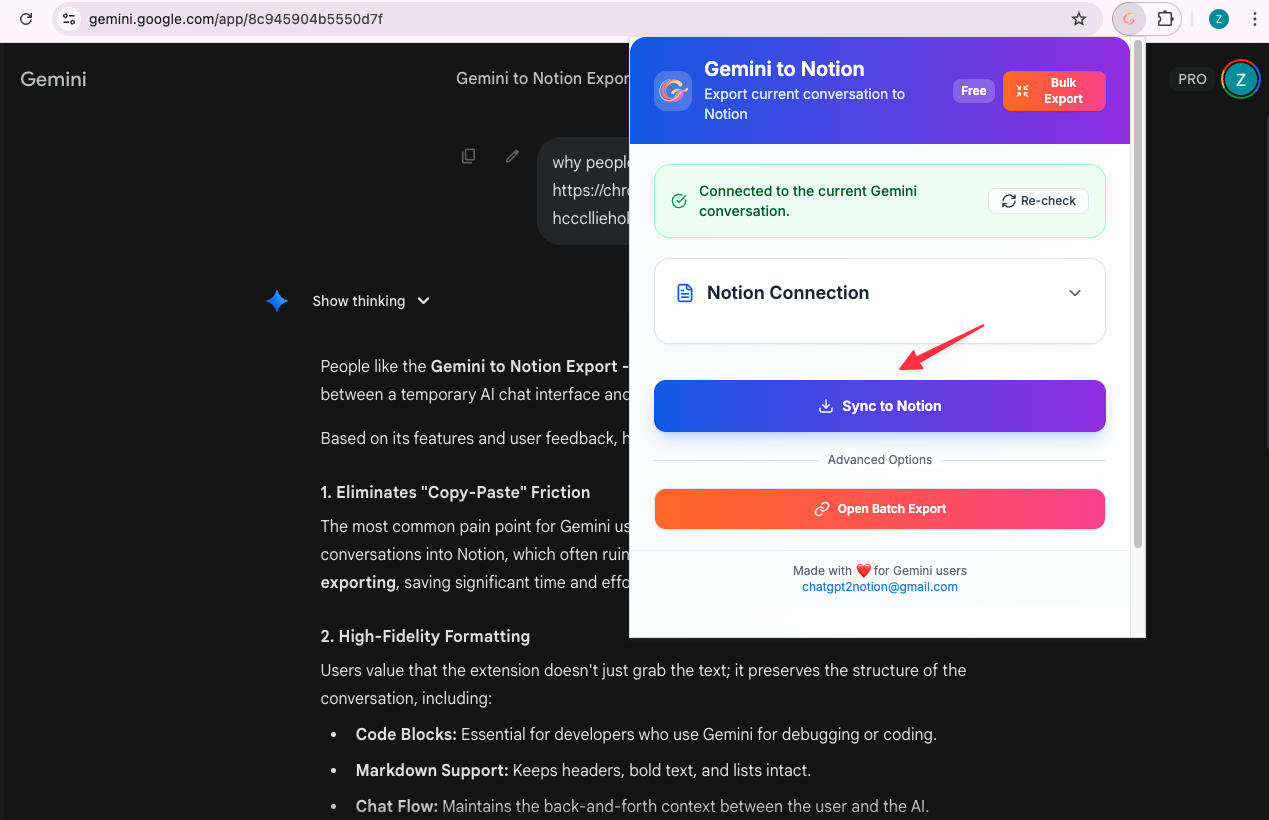
- Click the extension icon in your browser toolbar
- Ensure your target database is selected
- Click “Sync to Notion” button
- Wait for the export to complete
- View the saved page via the success notification
What Gets Exported
Each exported conversation includes:
- Title: The conversation title from Gemini
- URL: Source link to the original conversation
- ChatTime: Timestamp of the conversation
- Content: Full conversation with preserved formatting
- User prompts
- AI responses
- Code blocks
- Images
- Lists and tables
Export Status
The extension shows real-time status:
- Exporting: Export in progress
- Success: Conversation saved successfully
- Error: Export failed (see error message)
Free Tier Limits
Free users can:
- Export unlimited individual conversations via popup
- Batch export up to 5 conversations
Tips
- Pin the extension for quick access
- Ensure stable internet connection during export
- The extension works on https://gemini.google.com/ pages only
- Each export creates a new page in your selected database
Troubleshooting
If export fails:
- Ensure you’re on a Gemini conversation page
- Check Notion authorization is valid
- Verify you have edit permissions for the database
- Refresh the Gemini page
- Try exporting again
“Not on Gemini page”:
- Make sure you’re on https://gemini.google.com/
- The extension only works on Gemini chat pages
“Database not found”:
- Your database may have been deleted
- Re-authorize Notion connection
- Select a different database
“Export failed”:
- Check internet connection
- Verify Notion is accessible
- Try again in a few moments
For more help, contact chatgpt2notion@gmail.com
Need more help? Contact Support