
Batch Export & Backup
Efficiently export multiple Gemini conversations to PDF in one operation
Batch Export allows you to export multiple Gemini conversations to PDF in one operation, creating a complete backup of your chat history.
Prerequisites
- Extension installed
- Gemini page open in a browser tab (gemini.google.com)
- Available export quota (free users: 5/day, subscribed: unlimited)
Access Batch Export
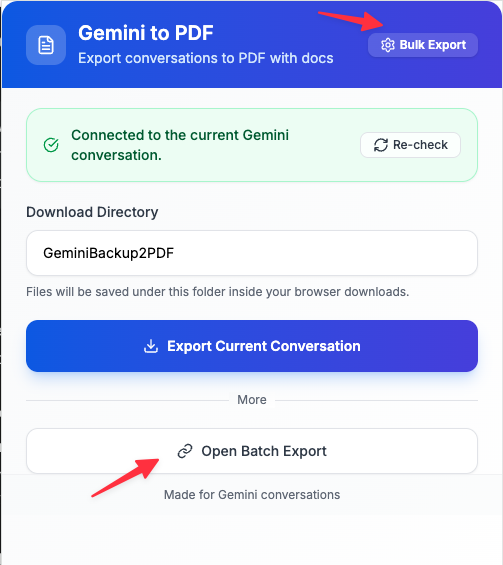
- Click the Gemini to PDF extension icon in your toolbar
- Click “Batch Export” button in the popup
- The batch export interface will open
Step 1: Verify Connection
Before starting batch export, verify the connection status:
✅ Connected to Gemini
- Extension is ready to export
- Conversation list detected
- Proceed with configuration
❌ Not Connected
- Open gemini.google.com in a tab
- Refresh the page
- Return to batch export interface
Step 2: Select Conversations
Choose which conversations to export:
Export All Conversations
- Exports all conversations in your Gemini history
- Automatically handles pagination
- May take several minutes for large histories
Export Recent Conversations
- Export the most recent N conversations
- Faster than exporting all
- Recommended for regular backups
Select Specific Conversations
- Manually select conversations from the list
- Use checkboxes to select/deselect
- View conversation titles and dates
Step 3: Configure Export Settings
Skip Already Exported
Enabled (Recommended):
- Skips conversations that have already been exported
- Prevents duplicate PDFs
- Faster export process
- Default behavior
Disabled:
- Re-exports all selected conversations
- Overwrites existing PDFs (Chrome adds numbers to filenames)
- Use when you need fresh copies
Download Location
Choose where PDFs are saved:
- Browser default: Uses Chrome’s default download folder
- Custom folder: Specify a subfolder (e.g., “Gemini Backups”)
- Ask each time: Chrome prompts for location for each PDF
File Naming Pattern
Choose how PDFs are named:
- Default:
Gemini_[Title]_[Date].pdf - Date first:
[Date]_Gemini_[Title].pdf - Title only:
[Title].pdf
Step 4: Start Batch Export
- Review your configuration
- Click “Start Batch Export” button
- Monitor the progress bar and status messages
- Wait for export to complete
Important: Keep the batch export page open during the process. Do not close the browser or navigate away.
Export Progress
During batch export, you’ll see:
Progress Bar
- Shows percentage complete
- Updates in real-time
- Estimated time remaining
Status Messages
- “Processing conversation 5 of 20…”
- “Generating PDF for [Conversation Title]…”
- “Skipping already exported conversation…”
Live Statistics
- Total: Total conversations to process
- Exported: Successfully exported
- Skipped: Already exported (if skip enabled)
- Failed: Failed to export (with error details)
Export Results
After batch export completes, you’ll see a detailed summary:
Success Count
- Number of conversations successfully exported
- List of exported conversation titles
- Links to open PDFs
Skipped Count
- Number of conversations skipped (already exported)
- List of skipped conversation titles
- Option to force re-export
Failed Count
- Number of conversations that failed to export
- Error details for each failure
- Option to retry failed exports
Export History
View all past batch export operations:
- Scroll down to “Export History” section
- See details for each export:
- Timestamp
- Total/Success/Skipped/Failed counts
- Conversation list
- Available actions:
- View details
- Retry failed exports
- Delete history record
- Clear all history
Performance & Limits
Free Tier
- Daily limit: 5 exports per day
- Quota reset: Midnight (local time)
- Batch export: Counts toward daily limit
Subscribed Users
- Unlimited exports: No daily limit
- Priority processing: Faster export speed
- Advanced features: Custom templates, bulk operations
Performance Tips
- Average speed: ~3-5 seconds per conversation
- Large conversations: May take 10-20 seconds each
- Keep tab active: Don’t minimize or switch tabs during export
- Stable internet: Required for loading conversation content
- For large batches (100+): Consider exporting in smaller chunks
Handling Errors
”Connection Lost”
Cause: Internet connection interrupted or Gemini page closed
Solution:
- Check internet connection
- Ensure Gemini tab is still open
- Refresh Gemini page
- Restart batch export
”Export Failed for Some Conversations”
Cause: Individual conversations may fail due to:
- Corrupted conversation data
- Missing content
- Network timeout
Solution:
- Check export results for error details
- Use “Retry Failed” button
- If problem persists, try exporting individually
”Daily Limit Reached”
Cause: Free tier daily limit (5 exports) reached
Solution:
- Wait until midnight for reset
- Or upgrade to unlimited exports
- Batch export will stop when limit is reached
”Browser Out of Memory”
Cause: Too many conversations being processed simultaneously
Solution:
- Close other browser tabs
- Restart Chrome
- Export in smaller batches (e.g., 20 at a time)
Best Practices
Regular Backups
- Weekly backups: Export new conversations weekly
- Enable skip: Avoid re-exporting old conversations
- Organize by date: Use date-first naming pattern
Large History Archives
- Start small: Test with 10-20 conversations first
- Export in chunks: Break large histories into manageable batches
- Monitor progress: Watch for errors and retry if needed
Organizing Exports
- Use subfolders: Create folders by month or topic
- Consistent naming: Stick to one naming pattern
- Tag important exports: Add prefixes to critical conversations
Troubleshooting
Batch Export Won’t Start
Solution:
- Verify Gemini page is open
- Check connection status
- Refresh Gemini page
- Reopen batch export interface
Export Stops Midway
Solution:
- Check internet connection
- Ensure Gemini tab is active
- Check browser console for errors
- Restart batch export
Some PDFs are Blank
Solution:
- Retry failed exports individually
- Open conversation in Gemini to verify content exists
- Check if conversation is corrupted
- Report issue if problem persists
PDFs Missing Images
Solution:
- Ensure stable internet during export
- Wait for images to load before export
- Check if images are visible in Gemini
- Retry export for affected conversations
FAQ
Q: Can I export while using Gemini? A: Yes, but keep the Gemini tab active. Don’t navigate away during batch export.
Q: How long does batch export take? A: Average 3-5 seconds per conversation. 100 conversations ≈ 5-8 minutes.
Q: Can I cancel a running batch export? A: Yes, click “Cancel Export” button. Already-exported PDFs will remain saved.
Q: Do I need to keep the batch export page open? A: Yes, closing the page will stop the export process.
Q: What happens if my computer goes to sleep during export? A: Export will pause. Wake the computer and restart the batch export.
Q: Can I export conversations from different Gemini accounts? A: Yes, but you need to switch accounts in Gemini and run separate batch exports.
For more help, contact support@gemini-to-pdf.com or visit our GitHub Issues.
Need more help? Contact Support