
Exporting Individual Conversations
Export the current Perplexity thread, a Computer Task, or supported opened tabs as Markdown with the real version 3.1 popup
The popup is the fastest way to export one Perplexity item or several supported tabs already open in the current Chrome window.
Supported current pages
Version 3.1 recognizes:
- standard Perplexity conversations at
/search/{id} - supported Perplexity Computer Tasks at
/computer/tasks/{id}
If the popup cannot detect a supported item, confirm the URL, refresh the page after installing or updating the extension, and reopen the popup.
Export the current thread
- Open the conversation or Computer Task.
- Click the extension icon.
- Optionally expand Configuration and review the output settings.
- Click the current-thread export action.
- Keep the Perplexity page open until the Markdown and any companion files finish downloading.
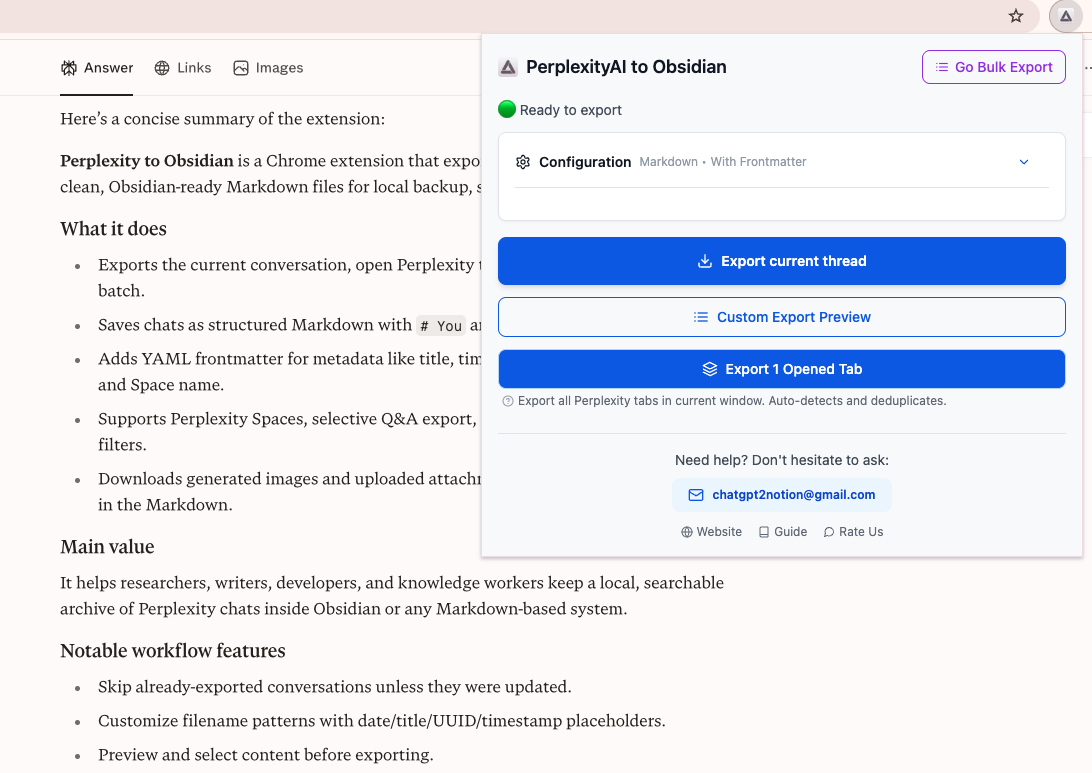
Popup configuration
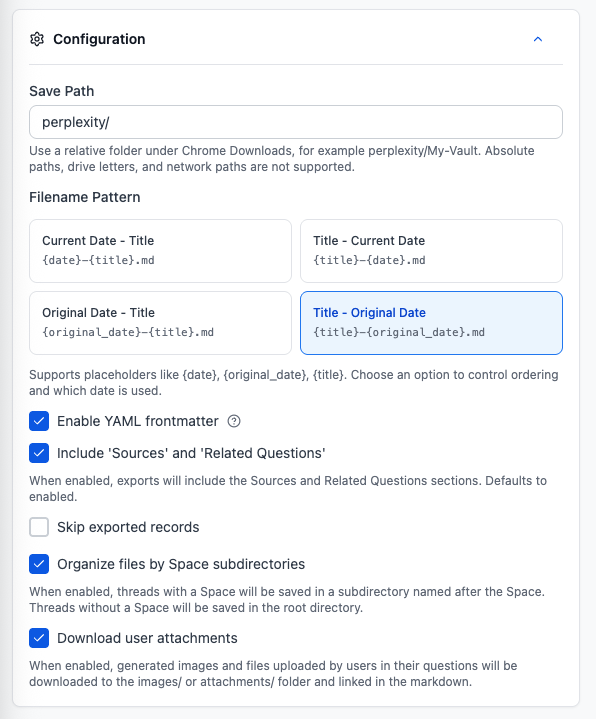
The expandable Configuration section contains:
- Save Path: relative to Chrome’s configured Downloads folder
- browser time zone display
- four filename orders using current or original date plus title
- YAML frontmatter
- one combined Include Sources and Related Questions toggle
- skip exported records
- organize files by Space subdirectories
- download user attachments
- filename preview
The default Save Path is perplexity/. Absolute macOS paths, Windows drive paths, network paths, .., empty path segments, and unsupported special characters are rejected.
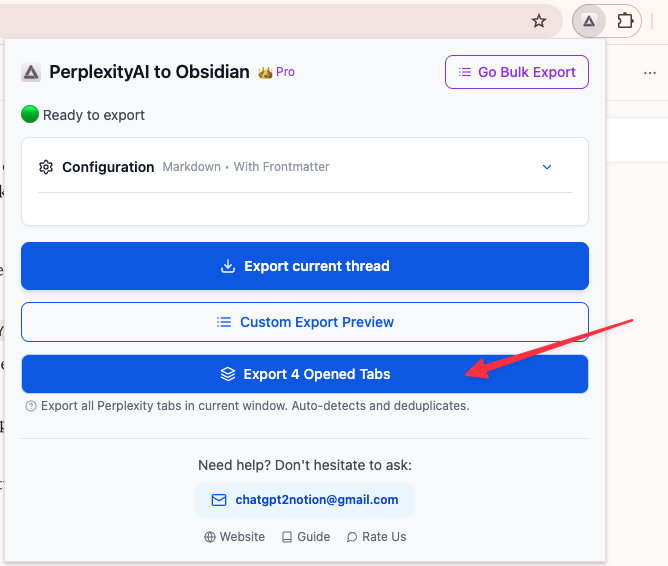
Export opened tabs
- Open the supported Perplexity conversations or Computer Tasks you want in separate tabs.
- Keep them in the same Chrome window.
- Open the extension popup.
- Click Export Opened Tabs.
- Monitor the popup progress until the operation finishes.
The extension deduplicates supported tabs by their Perplexity ID. Unsupported Perplexity pages and duplicate tabs are skipped.
Successful output
The Markdown filename is sanitized, limited to a safe length, and downloaded with Chrome’s uniquify behavior. If a file with the same name exists, Chrome normally adds a numeric suffix instead of overwriting it.
With attachment download enabled, the standard current-thread and opened-tabs workflows can also save:
- uploaded or returned files under
attachments/ - generated images under
images/
The note uses relative Markdown links. It does not use Obsidian wiki-link syntax.
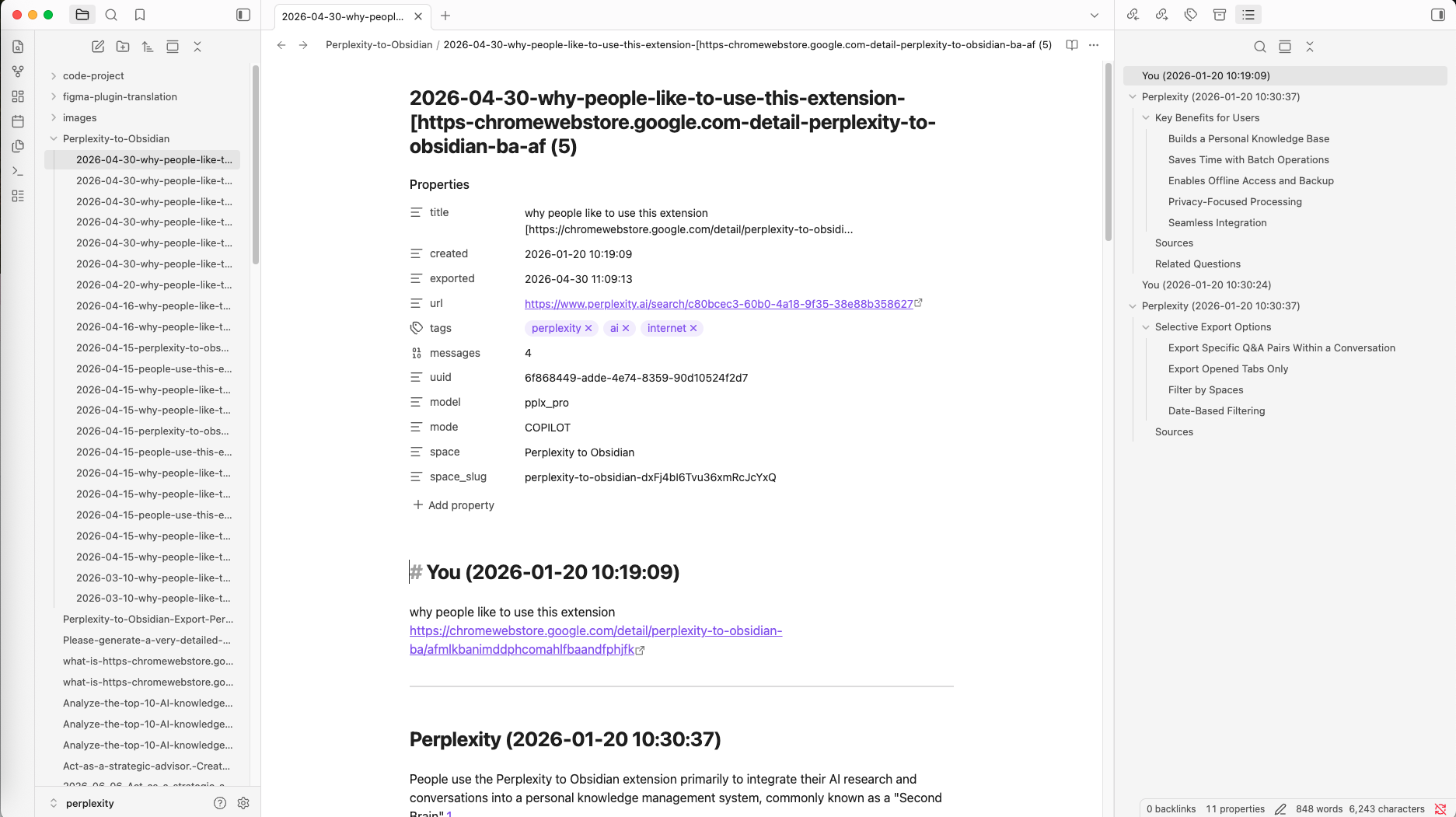
Frontmatter example
The exact fields depend on the source data:
---
title: "Example research thread"
created: "2026-07-30 09:30:00"
updated: "2026-07-30 09:42:00"
exported: "2026-07-30 10:05:00"
platform: "Perplexity"
url: "https://www.perplexity.ai/search/..."
sourceUrl: "https://www.perplexity.ai/search/..."
sourceId: "..."
tags:
  - perplexity
  - ai
messages: 4
messageCount: 4
uuid: "..."
space: "Example Research"
space_slug: "example-research"
---
Optional model, mode, Space, and updated fields are emitted only when available.
Free-plan note
The subscription service marks individual exports as allowed, but version 3.1’s popup also checks a locally stored daily operation counter before current-thread and opened-tab actions. If the popup displays a free-limit message, activate the subscription from Batch Export or follow the options shown in the interface.
For message-by-message review, use Custom Export Preview. For many conversations, use Batch Export.
Ready to try Perplexity To Obsidian?
Open the product page for feature details, screenshots, pricing, and the Chrome Web Store install link.