
Bulk, Selective & Project Sync
Sync the current Claude archive page, complete history, selected conversations, or Claude Projects to Notion
The Sync Center handles exports larger than one conversation. It combines destination settings, content policy, source selection, live progress, and recent run history in one workspace.
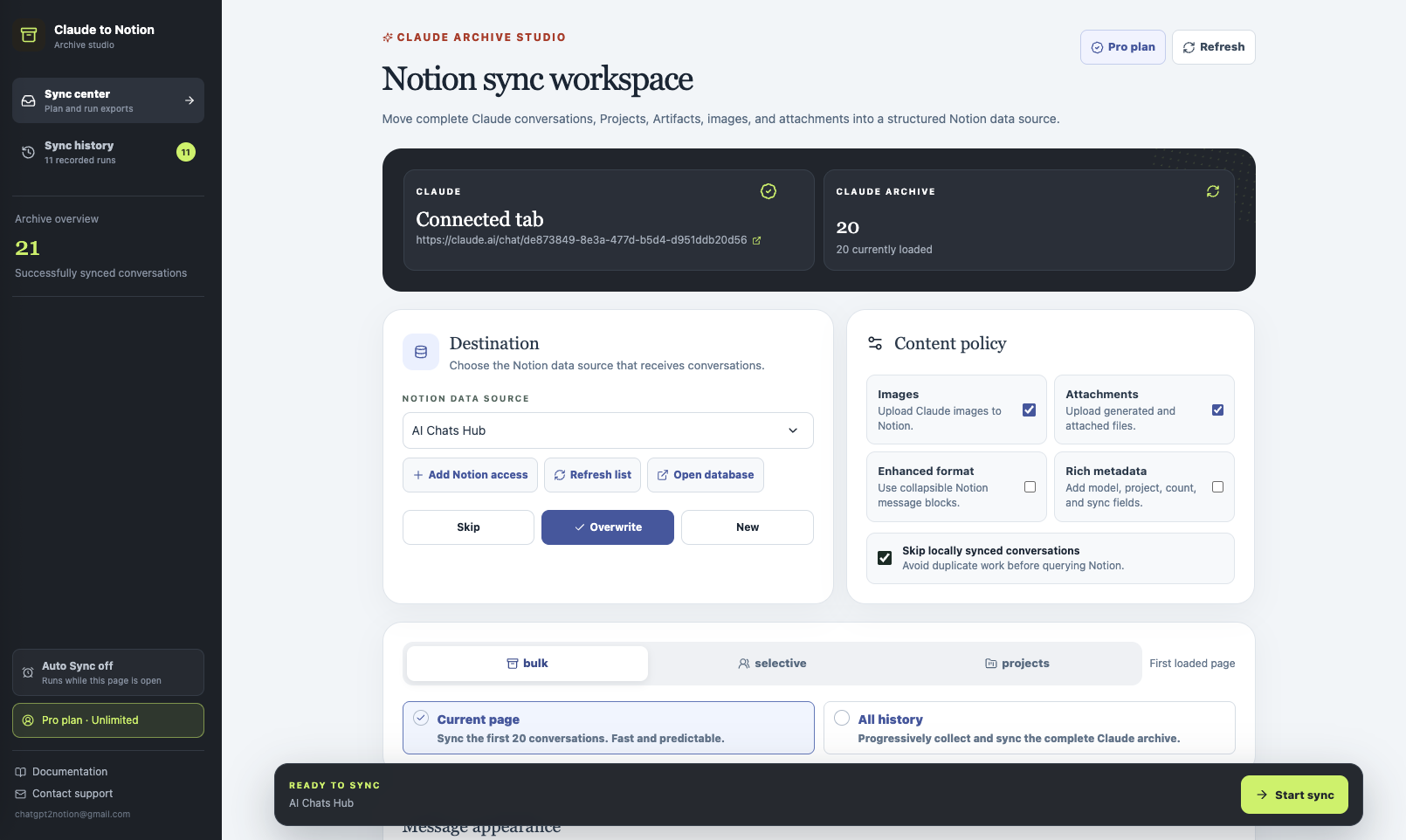
Before a large sync
- Keep a signed-in Claude tab open.
- Confirm the connected Claude tab shown in the workspace.
- Select the correct Notion data source.
- Choose Skip, Overwrite, or New.
- Set the image, attachment, formatting, metadata, and local-skip options.
Use Skip for a recurring archive that should preserve existing Notion pages. Use Overwrite when the destination must reflect the latest Claude content.
Bulk: current page or all history
Open Bulk and choose one of two ranges:
- Current page processes the first loaded archive page. It is faster and predictable for a small backup.
- All history progressively collects and processes the complete Claude archive. It can take longer for large accounts.
The exporter streams one conversation at a time and paces requests to reduce avoidable service-limit failures.
Selective Sync
Open Selective when you need specific conversations rather than a complete archive.
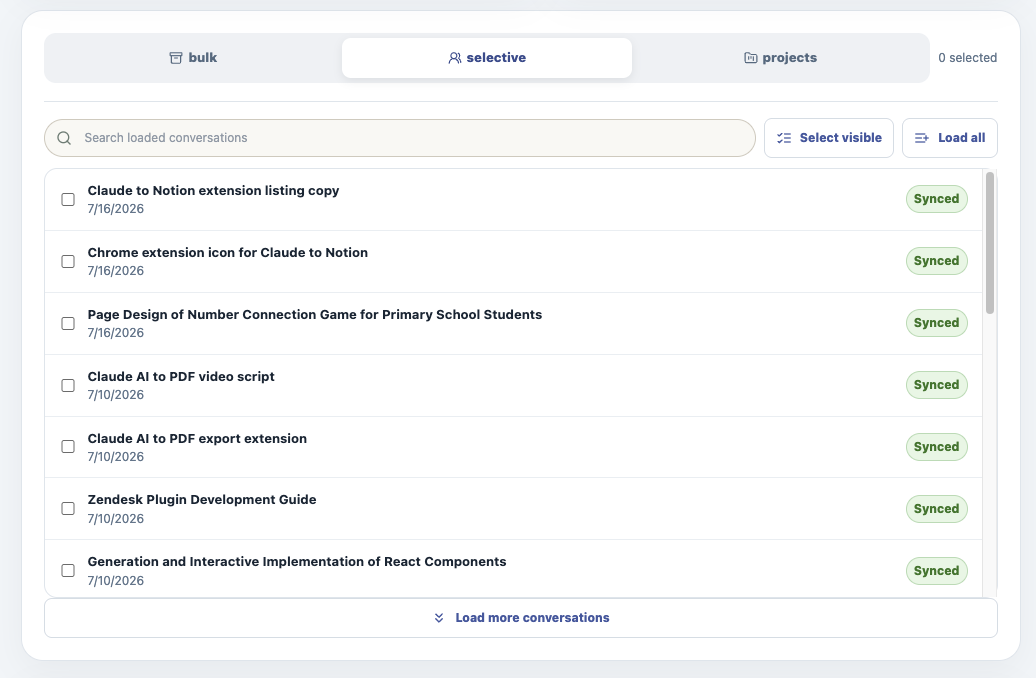
- Search the loaded conversation list.
- Check the records you want.
- Use Select visible for the current filtered list or Load all to collect more history.
- Review any Synced labels before starting.
- Run the selection with the destination and conflict rules chosen above.
This workflow works well for project handoffs, a topic-specific research library, or a staged migration where you want to test a smaller set first.
Claude Projects
Open Projects to preserve Claude’s project organization.
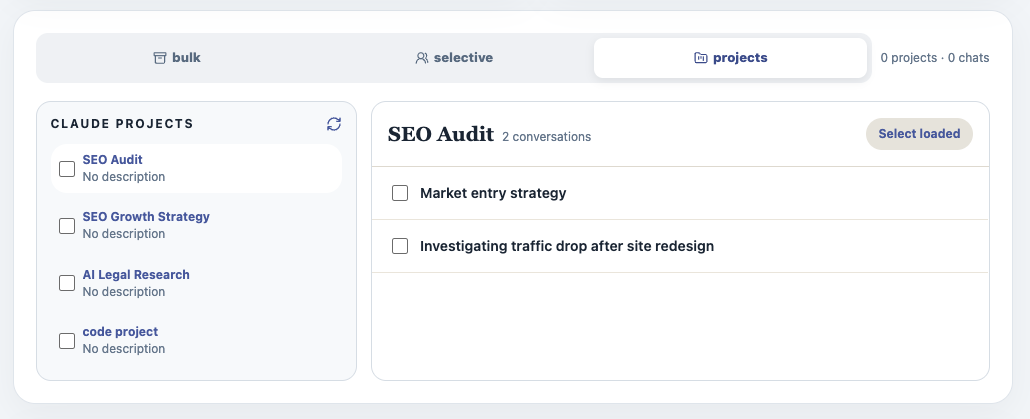
- Load the Project list.
- Choose a Project in the left column.
- Review the conversations in the right column.
- Select the complete loaded Project or individual conversations.
- Enable rich metadata if the Project name should be written to Notion fields.
Live progress
During a run, the Sync Center reports the active conversation and detailed activity such as:
- Downloading an attachment from Claude
- Uploading a file to Notion
- Writing a page-content batch
- Creating a linked child page for fallback content
Do not close the Sync Center until the final totals appear.
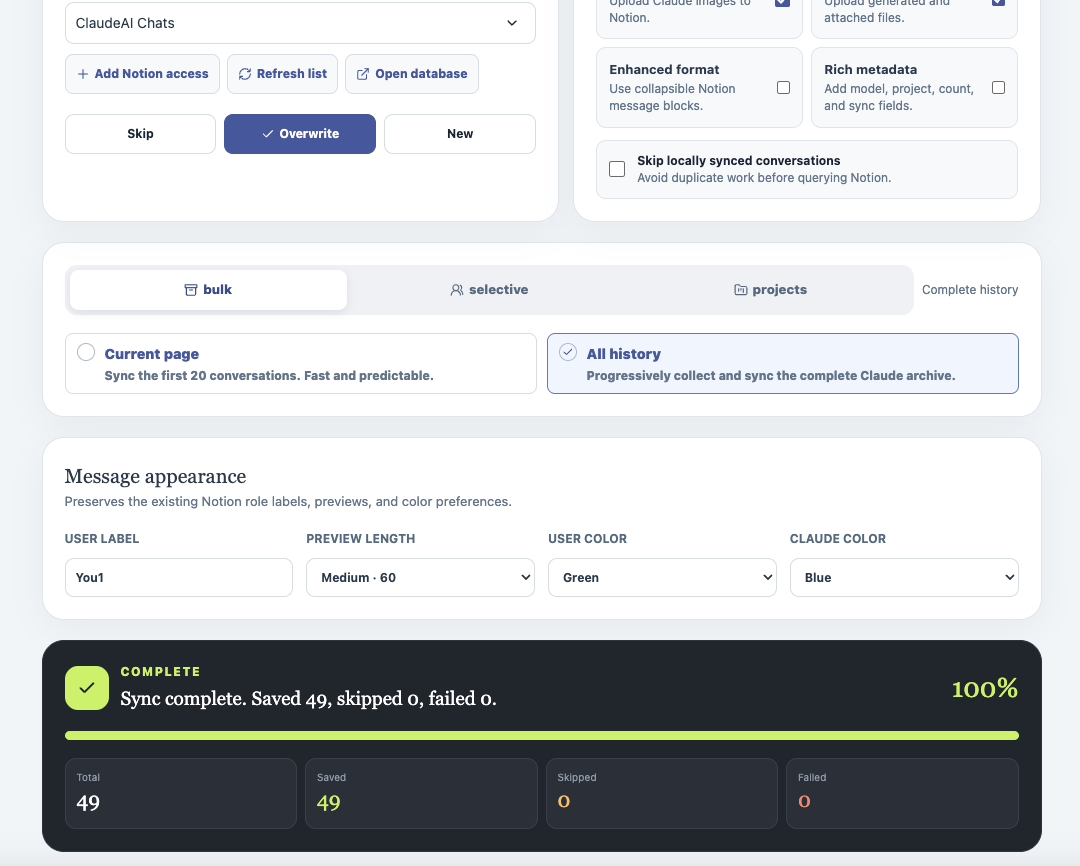
Results and sync history
The final panel separates:
- Saved conversations written successfully
- Skipped conversations excluded by local tracking or conflict rules
- Failed conversations that need review
- Cancelled runs stopped before completion
Up to 20 recent runs are retained locally. Open a run to review its source, time, totals, and affected conversations.
Auto Sync
Auto Sync can schedule recurring archive runs while the Sync Center remains open. Configure the interval, keep the workspace tab open, and review the next run, last run, and results from the same page.
Auto Sync does not continue after the Sync Center is closed.
Cancel a run
Use Cancel to stop after the current safe boundary. Conversations already saved remain in Notion, and the run is marked as cancelled in history.
When an item fails
Open the failure details to see the conversation, stage, and original API error. Retry only failed items after correcting access, connection, or file issues. Use the copyable sanitized developer report when contacting support.
See Troubleshooting for specific fixes.
Ready to try Claude To Notion?
Open the product page for feature details, screenshots, pricing, and the Chrome Web Store install link.