
Installation
Install Claude to Notion from the Chrome Web Store and connect it to an active Claude tab
Install from the Chrome Web Store
- Open the Claude to Notion Chrome Web Store listing.
- Select Add to Chrome.
- Review the requested permissions and confirm the installation.
- Open Chrome’s Extensions menu and pin Claude to Notion for quicker access.
Connect the extension to Claude
- Sign in at claude.ai.
- Open a conversation.
- Click the pinned extension icon.
- Confirm that the popup shows Claude connected.
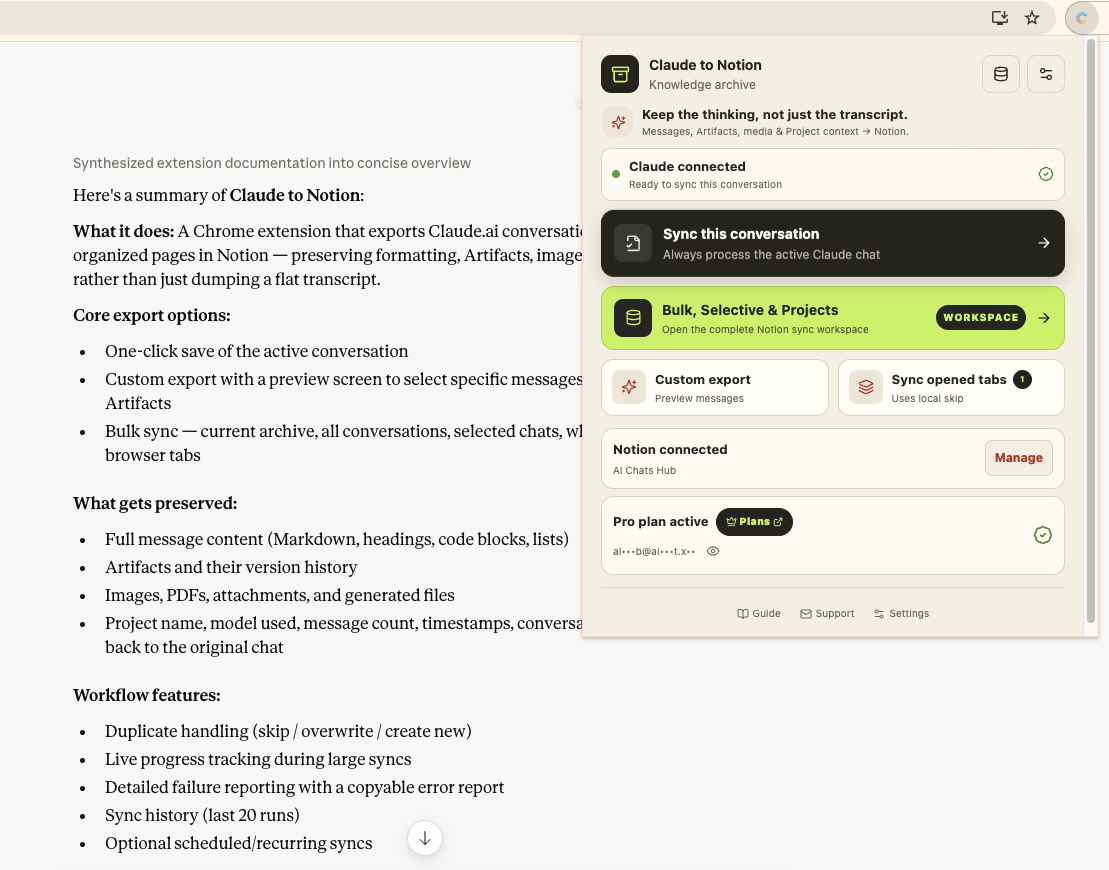
If the extension was installed while a Claude tab was already open, refresh that tab once. The extension must connect to a page loaded after installation.
Complete setup
The extension also needs permission to write to your chosen Notion destination. Continue to Connect to Notion.
Quick verification
Setup is ready when the popup shows both:
- Claude connected for the active tab
- Notion connected with a destination name
You can then use Sync this conversation, Custom export, Sync opened tabs, or the full Bulk, Selective & Projects workspace.
Ready to try Claude To Notion?
Open the product page for feature details, screenshots, pricing, and the Chrome Web Store install link.